Apex Legends combines battle royale chaos with hero shooter abilities, creating performance demands that challenge even powerful hardware. The game’s large maps, extensive particle effects, and 60-player lobbies stress both CPU and GPU differently than arena shooters like Valorant or CS2. After optimizing Apex across multiple hardware configurations and seasons, I’ve identified the settings and system tweaks that deliver the smoothest competitive experience.
Whether you’re dropping hot into Fragment or holding position in final ring, consistent framerates prevent the stuttering that costs fights. This guide covers everything from in-game settings to autoexec configurations that competitive players rely on for peak performance.
Apex Legends performance characteristics
Understanding how Apex stresses your system helps you optimize effectively rather than blindly copying settings.
CPU intensity: Apex Legends is notably CPU-heavy, particularly during hot drops where many players, abilities, and effects render simultaneously. The game benefits from strong single-thread performance but also utilizes multiple cores for physics and audio processing.
GPU scaling: Unlike some competitive shooters, Apex actually looks significantly better at higher settings while maintaining playable framerates on mid-range hardware. The optimization challenge is maintaining consistency during intensive moments rather than achieving baseline playability.
Memory usage: Apex consumes 8-12GB of RAM during typical gameplay. Systems with only 8GB experience texture streaming issues and stuttering. 16GB is the practical minimum for smooth performance.
Network sensitivity: As a battle royale with server-side hit detection, network performance significantly affects how the game feels. Optimization must address both framerate and network configuration.
Optimal video settings for competitive play
Apex’s settings menu offers extensive customization. These recommendations balance performance with the visual clarity needed to spot enemies across the game’s varied environments.
Display Mode: Full Screen. Essential for lowest input latency, never use windowed modes for competitive play.
Aspect Ratio: Native (typically 16:9). Some players experiment with stretched resolutions, but Apex doesn’t support them as cleanly as Source engine games.
Resolution: Native 1080p for most competitive players. Drop to 900p or 720p only if struggling to maintain stable framerates. Resolution significantly affects target visibility at range.
Field of View: 110 (maximum). Higher FOV provides peripheral awareness critical for battle royale situations. The performance cost is minimal on modern hardware.
Sprint View Shake: Minimal. Reduces screen shake during sprinting for cleaner target tracking.
V-Sync: Disabled. Adds significant input lag, never enable for competitive play.
Adaptive Resolution FPS Target: 0 (Disabled). Dynamic resolution causes blurring during intensive moments, exactly when visual clarity matters most. Some systems benefit from a manual FPS cap set slightly above the monitor’s refresh rate to improve frame-time consistency, particularly when NVIDIA Reflex is enabled.
Adaptive Supersampling: Disabled. Let DLSS/FSR handle upscaling if needed rather than this inferior implementation.
Anti-Aliasing: None or TSAA. TSAA adds slight blur but smooths edges. Many competitive players disable AA entirely for sharpest image, accepting some aliasing artifacts. If using DLSS or FSR, these handle anti-aliasing automatically.
DLSS/FSR (Upscaling): Apex now supports both NVIDIA DLSS and AMD FSR: significant additions for performance optimization.
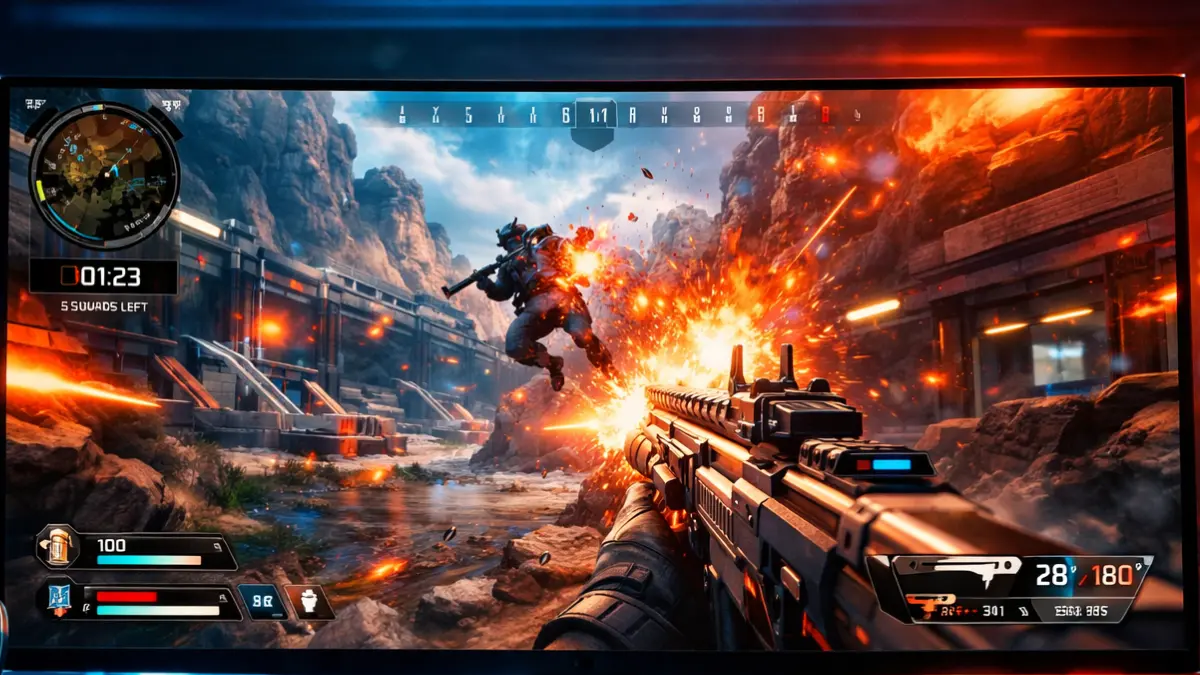
- DLSS (NVIDIA RTX cards): Quality or Balanced mode provides significant FPS gains with minimal visual loss. DLSS actually sharpens the image compared to native rendering at lower framerates, making it excellent for competitive play.
- FSR (All GPUs): Quality mode works well for AMD users or older NVIDIA cards. More aggressive modes (Balanced, Performance) introduce noticeable blur that can hurt target identification at range.
- Competitive recommendation: If you can maintain 144+ FPS at native resolution, disable upscaling for maximum clarity. Use DLSS Quality or FSR Quality if you need the performance boost to hit stable framerates. The clarity difference between DLSS Quality and native is minimal. The FPS gain is worth it for most players.
Texture Streaming Budget: Based on your VRAM. 4-6GB for most cards. Setting higher than your available VRAM causes severe stuttering.
Texture Filtering: Bilinear. Lowest performance cost with minimal visual impact in Apex’s art style.
Ambient Occlusion Quality: Disabled. Adds shadowing in corners that rarely provides competitive information while consuming resources.
Sun Shadow Coverage: Low. Shadows in Apex provide minimal competitive information compared to their performance cost.
Sun Shadow Detail: Low. Further reduces shadow rendering complexity.
Spot Shadow Detail: Disabled. Dynamic shadows from abilities and effects. Disabling improves performance during fights.
Volumetric Lighting: Disabled. Atmospheric effects that obscure visibility while consuming significant resources.
Dynamic Spot Shadows: Disabled. Additional shadow complexity without competitive benefit.
Model Detail: Medium. Affects character model complexity. Low can make enemies harder to identify at distance.
Effects Detail: Low. Reduces ability effect complexity, important for maintaining framerates during chaotic teamfights.
Impact Marks: Disabled. Bullet impact decals that accumulate and consume resources without gameplay value.
Ragdolls: Low. Dead player physics that distract from active threats while consuming CPU resources.
Autoexec and config file optimization
Apex Legends supports autoexec files for advanced configuration beyond menu options. If you’re familiar with console commands from CS2, you’ll recognize this approach. The CS2 optimization guide covers similar config tweaks for Source 2 engine.
Config location: Documents\Respawn\Apex\local\ contains your settings files.
Creating autoexec: Create a file named autoexec.cfg in the config folder.
Recommended autoexec commands:
// Performance
fps_max 0
mat_letterbox_aspect_goal 0
mat_letterbox_aspect_threshold 0
// Network
cl_forcepreload (May have no effect in recent seasons)
// Visual clarity
r_lod_switch_scale 0.35
// Audio positioning
sound_num_speakers 2
miles_occlusion 0
// Execute confirmation
echo “Autoexec loaded”
Launch options: In Origin/EA App, right-click Apex > Properties > Advanced Launch Options:
+fps_max 0 -novid -high
+fps_max 0: Removes framerate cap from startup.
-novid: Skips intro videos for faster loading.
-high: Sets process priority to High.
Note on anti-cheat: Apex’s Easy Anti-Cheat restricts some commands that worked in earlier seasons. Avoid commands that modify gameplay mechanics, they’ll either be blocked or risk account penalties.
NVIDIA Reflex in Apex Legends
Apex Legends supports NVIDIA Reflex for significant latency reduction on compatible hardware.
Enabling Reflex: In Video settings, set NVIDIA Reflex to “Enabled + Boost.” The Boost setting prevents GPU clock ramping delays.
Performance impact: My testing shows 18-25ms system latency reduction with Reflex enabled versus disabled. This exceeds nearly every other single optimization and is especially noticeable in close-range fights where reaction time determines outcomes. Valorant players see comparable improvements. The Valorant optimization guide covers Reflex configuration for that game’s 300+ FPS targets.
Monitoring latency: Enable Performance Display in Apex’s Gameplay settings. With Reflex active, the display shows system latency alongside FPS, target sub-25ms for optimal responsiveness.
AMD users: AMD Anti-Lag provides some latency reduction but isn’t integrated into Apex’s menu. Enable through Radeon Software for your Apex profile.
Audio settings for competitive advantage
Audio configuration significantly affects your ability to locate enemies in Apex.
Sound quality: Default or lower. Higher quality consumes CPU resources without providing competitive advantage, positional audio accuracy remains consistent.
Dialogue volume: Reduced (50-70%). Legend callouts can mask enemy footsteps.
Sound effects volume: High (80-100%). Includes footsteps and ability sounds you need to hear.
Music volume: 0%. Background music provides no competitive value.
Voice chat volume: Adjust based on squad communication needs.
Sound output: Headphones. Ensures stereo positioning works correctly, surround processing can mask directional cues.
Windows Sonic/Dolby Atmos: Personal preference. Some players find spatial audio helps vertical positioning; others prefer stereo for clearer lateral accuracy.
System optimization for Apex
Beyond in-game settings, Windows and driver configuration affects Apex performance.
Power plan: High Performance or Ultimate Performance. Apex’s CPU demands benefit from consistent clock speeds without power-saving transitions.
Background applications: Close Chrome, Discord overlay, and streaming software if experiencing frame drops. Apex is resource-intensive enough that background applications noticeably affect performance.
GPU driver settings:
For NVIDIA:
- Power management: Prefer maximum performance
- Low Latency Mode: Ultra (alongside in-game Reflex)
- Shader cache: Enabled with large size
For AMD:
- Anti-Lag: Enabled
- Radeon Boost: Disabled (causes resolution scaling)
- Power settings: Maximum performance
Windows Game Mode: Enabled. Helps manage background processes during Apex sessions.
For comprehensive Windows optimization, see our Windows gaming optimization guide.
Addressing common Apex performance issues
Specific problems require targeted solutions.
Stuttering during hot drops: This CPU-bound scenario challenges even powerful processors. Lower Effects Detail and disable Spot Shadows. Consider reducing model counts through config tweaks if stuttering persists.
Frame drops when opening inventory: Apex’s inventory system is poorly optimized. No in-game fix exists, minimize inventory time during fights.
Texture streaming issues: Verify Texture Streaming Budget matches your VRAM. If textures appear blurry, the budget is set too low. If stuttering occurs, it’s set too high.
Connection issues and prediction errors: Check network statistics. High ping or packet loss causes rubber-banding regardless of FPS. Use wired connections and optimize network settings.
Verifying your optimization results
Measure improvements through consistent testing.
Firing range: Use the firing range for controlled performance testing. Consistent environment allows accurate comparison between settings.
Performance metrics to monitor:
- Average FPS during movement and combat
- Minimum FPS during hot drops (Fragment, Estates)
- System latency via performance display
- 1% lows for consistency assessment
Target performance:
- 144+ stable FPS for 144Hz competitive play
- 190+ for 240Hz displays
- Sub-25ms system latency with Reflex
- Minimum FPS above 100 even during chaotic fights
- 1% lows within 20% of average FPS
BR-specific testing: Play multiple matches noting performance during:
- Initial drop with many players
- Third-party fights with multiple ability effects
- Final ring with smokes and ultimate abilities
Apex Legends rewards both mechanical skill and game sense. Proper optimization ensures your hardware doesn’t handicap your abilities during crucial moments, whether you’re one-clipping an enemy or clutching a 1v3 in final ring.
The addition of DLSS and FSR support has made Apex more accessible for mid-range hardware while giving high-end systems the option to push even higher framerates. Combined with NVIDIA Reflex, competitive Apex has never felt more responsive.
For optimization strategies covering Valorant, CS2, Warzone, and other competitive shooters, see the Competitive FPS optimization guide.