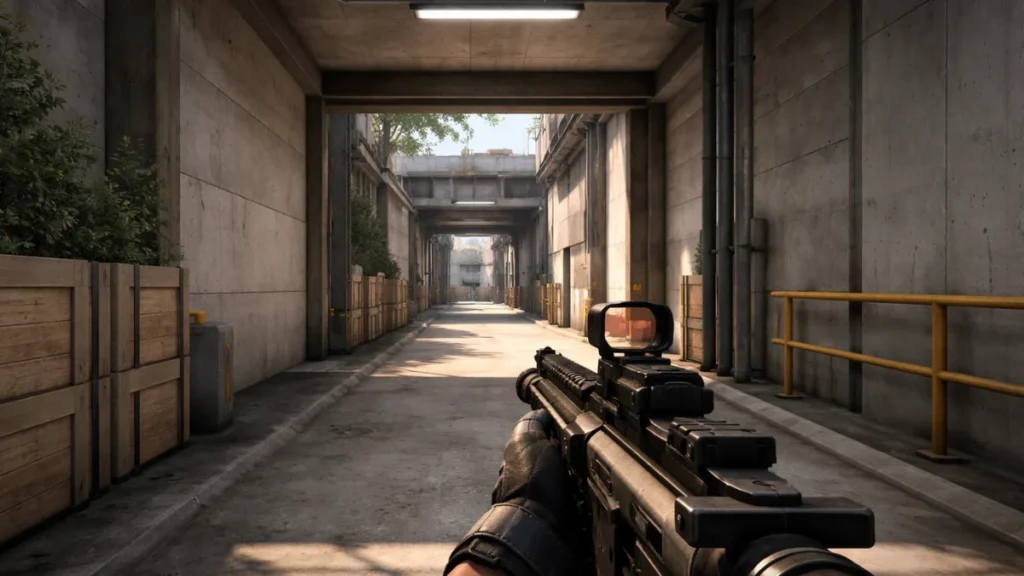
The biggest change to the engine in the history of the Counter-Strike franchise is Counter-Strike 2. The switch to Source 2 made the graphics better, but it also changed how the game runs, thus it needs different optimization methods than CS:GO. After a lot of testing on several hardware setups, I’ve found the settings and startup parameters that make CS2 run as fast as possible while still keeping the game’s competitive clarity.
If you’re seeing frame drops during smokes, inconsistent performance on some maps, or just want every potential edge in ranked matches, properly optimizing CS2 will make a big difference in both framerates and how quickly your inputs respond.
Getting to know CS2’s performance profile
The Source 2 engine in CS2 works very differently from the Source engine in CS:GO. Performance issues have changed, and tweaks that worked for a long time in CS:GO may not function or perhaps make things worse in CS2.
CPU dependency: CS2 depends more on how well the CPU works than its predecessor. Single-thread performance is very important for keeping high framerates, especially when there are smoke grenades and complicated particle effects. CS2 works well on modern CPUs that have good single-core performance.
GPU utilization: Source 2 makes better use of contemporary GPUs than Source 1, but this implies that GPU settings have a bigger effect on performance. If you’re used to playing CS:GO with the best settings, you need to change how you play CS2.
Memory needs: CS2 needs more RAM than CS:GO. 16GB systems work fine, however 8GB systems may stutter during long sessions as memory strain develops.
Smoke grenades: The volumetric smoke system is the hardest part of CS2 to use. Even on strong hardware, frame dips are common during smoke deployments. Optimization has to focus on smoke performance instead than the overall framerate.
Best video settings for competitive play
CS2’s video settings need to be carefully balanced between performance and visibility in competition. In some shooters, the best settings are the same for everyone. But in CS2, the way visibility works means that some settings make it harder to see enemies.
Resolution: The norm for competitive play is still native 1080p, but some pros use 1280×960 stretched to make player models look bigger. Pick what you like, but know that stretched resolutions don’t give you any real benefits; they just change how you see the size of players horizontally instead of vertically.
Display Mode: Fullscreen has the least amount of input lag. For competitive play, don’t use windowed modes.
Aspect Ratio: Make sure it matches the resolution you choose. For native, use 16:9; for stretched, use 4:3.
Refresh Rate: Set it to the highest level your monitor can handle. CS2 works well with high refresh rates without the launch option changes that CS:GO needed.
Shadow Quality Around the World: Medium to High. Shadows give you information about where your enemies are hiding around corners. Shadows that are low take away this benefit.
Model/Texture Detail: Low to Medium. Higher settings use more VRAM without making enemies easier to see.
Bilinear or Trilinear are the two modes for texture filtering. In CS2’s environments, anisotropic filtering doesn’t do anything for the visuals and uses up resources.
Low shader detail: Makes things less complicated to look at without changing anything that affects gameplay.
Low particle detail: The most crucial parameter for constant framerates, it directly determines how well smoke grenades work.
Ambient Occlusion: turned off. Adds shadows that can hide player models in corners without giving any valuable information.
High Dynamic Range: How well it works. Quality mode adds visual effects that don’t help with competitive play.
FidelityFX: If you want better performance, turn off Super Resolution for native rendering or set it to Quality/Balanced. FSR can make everything a little blurry, which makes it harder to locate targets from a distance.
NVIDIA Reflex Low Latency: Enabled or Enabled plus Boost. Important for lowering input lag on NVIDIA graphics cards.
CS2 launch choices
The launch options for CS2 are very different from those for CS:GO. Many old choices don’t work anymore, but new ones do help with optimization.
Launch options for CS2
In Steam, right-click on CS2 and select Properties > General > Launch Options.
Suggested launch options:
-novid -high -threads [the number of threads you want]
Explanations of the options:
-novid: skips the intro video so the game loads faster. A suggestion for everyone.
-high: Sets the priority of the process to High. May make systems that run background apps more stable. Check your specific setup.
-threads [number]: This tells the engine how many CPU threads to use. Set to the number of threads on your CPU (for example, -threads 16 for a CPU with 8 cores and 16 threads). Source 2 does a better job of handling threading than Source 1, but being clear about what you want can assist.
Options that are no longer supported (don’t use):
-tickrate 128: Server The server now controls the tickrate.
-freq or -refresh: CS2 gets the refresh rate from Windows settings.
-nod3d9ex: Options in DirectX 9 that don’t matter for Source 2
-lv: Low violence mode is no longer available.
Choices for experiments:
-vulkan: Forces the Vulkan renderer to work. It might make AMD GPUs work better, but it could also cause problems with stability. Before using in a competition, test it properly.
Commands for optimizing the console
The CS2 console lets you optimize things even more than the menu options. In Game Settings, turn on the developer console. Then, press the tilde (~) key to open it. Commands for performance: fps_max 0 Gets rid of the framerate limit. If you want to keep your framerates consistent, set it to a value just over your monitor’s refresh rate (for example, fps_max 400 for 360Hz monitors).
cl_showfps 1
Shows the framerate counter. Use net_graph 1 to check the outcomes of optimization.
Displays network data like ping, packet loss, and tick rate. Important for finding problems with the network.
r_drawtracers_firstperson 0
Turns off bullet tracers that show where you are. When spraying, it makes things look less cluttered, but some players like tracers for feedback.
Commands for the network: rate 786432 Sets the highest bandwidth. For current internet connections, use the highest value.
cl_interp_ratio 1 cl_interp 0
Reduces interpolation to have the lowest network latency. Use only on connections that are steady and have a low ping.
Setting up Autoexec
Make an autoexec.cfg file so that the same parameters are used in all sessions. Location of the file: Make or change autoexec.cfg in your CS2 cfg folder: Steam\steamapps\common\Counter-Strike Global Offensive\game\csgo\cfg\ Basic autoexec template:
fps_max 0 and cl_showfps 1 are for performance. Network rate: 786432; cl_interp_ratio: 1; cl_interp: 0;
snd_headphone_pan_exponent 1.2 and snd_front_headphone_position 45 are for audio.
// Confirm execution echo “Autoexec loaded successfully” host_writeconfig
To make that the file runs at startup, add +exec autoexec.cfg to your launch options.
Optimizing NVIDIA and AMD drivers
GPU driver settings can improve performance even more than in-game choices.
Settings in the NVIDIA Control Panel for CS2:
Mode for managing power: Want the best performance
Ultra low latency mode (works with in-game Reflex)
Texture filtering: High quality performance
Vertical sync: Off
Max frame rate: Off (let the game settings handle it)
AMD Settings for Radeon Software:
Anti-Lag: On (AMD’s way to lower latency)
Radeon Boost: Off (makes the resolution scale)
Optional image sharpening, depending on what you like
Wait for Vertical Refresh: Always off
Driver versions: Always keep your drivers up to current, but pay attention to what other people say about new releases. Sometimes, upgrades for drivers cause problems that are only seen in CS2. These problems are fixed in later editions.
Fixing typical CS2 performance problems
Some problems need more than just generic optimization to be fixed
Smoke grenade frame drops: Set Particle Detail to Low. If drops keep happening, lower the Shader Detail. The performance of smoke is restricted by the CPU, and there isn’t much that can be done to improve it with the GPU.
Stuttering when playing: This is usually caused by shader compilation. During gaming, CS2 builds shaders, which might cause stutters. Playing each map in casual mode first lets the shaders compile before competitive games. Also, make sure that your page file is set up correctly on fast storage.
Framerates that don’t match: Use monitoring tools to check for thermal throttling. The CPU intensity of CS2 can push processors to their thermal limitations, which can slow down performance over long sessions.
Feeling of input lag: Make sure NVIDIA Reflex is turned on. Make sure that Windows Game Mode is turned on. Make sure you’re in real fullscreen mode and not borderless windowed mode.
Check out our guide on competitive FPS optimization for a full list of ways to do so.
Checking how well you do in CS2
Benchmarking your CS2 performance
Use a consistent testing strategy to check optimizations
Maps for the workshop: You can get FPS benchmark maps from the Steam Workshop. These make it possible to compare changes in settings over and over again.
Consistent testing: When comparing settings, use the same test cases every time. When there is a lot of smoke, the system reacts differently than when there is an open combat.
Things to keep an eye on:
Average FPS while playing normally Minimum FPS while using smoke grenades
1% low framerates for measuring consistency
Using Reflex statistics to measure system delay
What you want to achieve:
300+ FPS on average for competitive gaming with a high refresh rate Minimum FPS stays above the monitor’s refresh rate
Reflex makes the system latency less than 20 milliseconds. CS2 rewards both technical preparation and mechanical skill. These tweaks get rid of problems with the system that can cause inconsistencies. This means that your crosshair will always land where your skill puts it, without any changes in hardware impacting the outcome.