On this page
x264 encoding delivers the highest quality streams possible, but only if your CPU can handle it without choking. I learned this the hard way during a charity stream last year when my “optimized” x264 settings turned a smooth broadcast into a stuttering mess three hours in. The CPU hit 100%, frames dropped everywhere, and I spent the rest of the night apologizing to viewers.
That experience sent me down a rabbit hole. I’ve since tested x264 configurations across dozens of scenarios on my i9-13900K, during peak evening hours here in Texas when summer heat pushes CPU thermals hard. If you’re searching for the best x264 OBS settings for streaming on a single PC or dual PC setup, this guide breaks down exactly what to use and when.
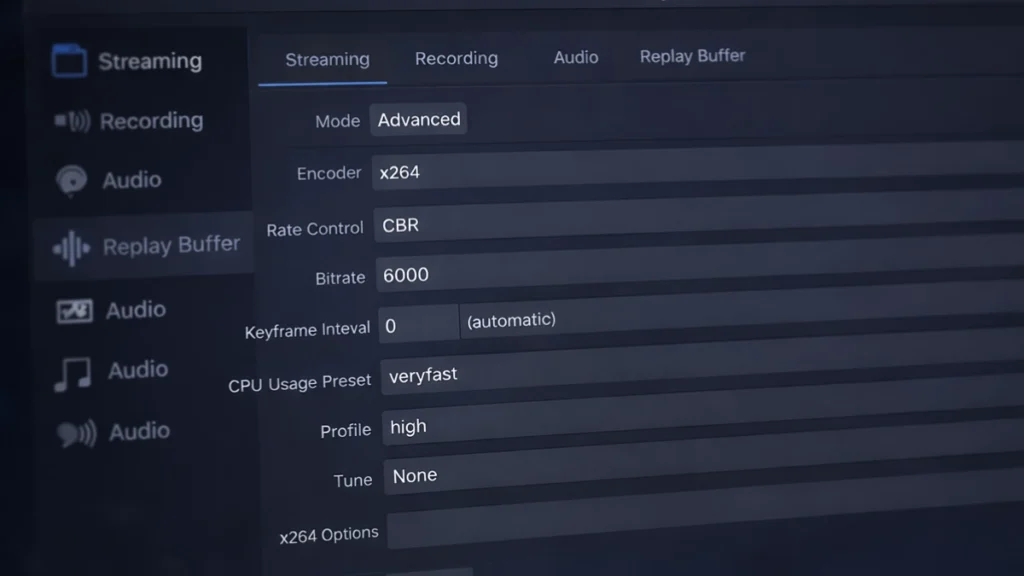
Quick x264 setup
Single PC (powerful CPU):
- Preset: veryfast or faster
- Bitrate: 6000 Kbps
- Profile: high
- Tune: none
- Rate control: CBR
Dual PC setup:
- Preset: medium or slow
- Bitrate: 6000 Kbps
- Profile: high
- Tune: none
- Rate control: CBR
When x264 makes sense: Dual PC setups, CPUs with 12+ cores, slow-paced content, or when you genuinely prioritize quality over everything else.
When x264 actually makes sense (and when it doesn’t)
Here’s something the quality purists won’t tell you: x264 isn’t automatically better than hardware encoding anymore. Modern NVENC has closed the gap significantly, and the situations where x264 genuinely outperforms it are narrower than forums suggest.
What x264 does well:
- Produces cleaner images at the same bitrate
- Handles gradients and fine textures better
- Offers more tweaking options for specific content
- Keeps your GPU completely free for gaming
What NVENC does better:
- Uses almost no CPU, leaving everything for your game
- Produces nearly identical quality on RTX 20 series and newer
- Never causes encoding lag or dropped frames
- Just works without constant monitoring
I ran side-by-side comparisons on my i9-13900K paired with an RTX 4070 Ti. At 1080p60 and 6000 Kbps, the difference between NVENC and x264 veryfast was barely visible, and only when I paused the stream and zoomed in. During actual viewing? Nobody could tell them apart.
For hardware encoding details, see the hardware encoding guide.
Who should NOT use x264
I’m putting this near the top because too many streamers waste hours troubleshooting x264 when they should’ve used NVENC from the start.
Don’t bother with x264 if:
- Your CPU has fewer than 8 cores
- You play CPU-heavy games like Civilization, Total War, or Cities Skylines
- You’re on a single PC with anything weaker than a Ryzen 7 or i7
- Stream stability matters more to you than pixel-perfect quality
- You’ve already seen encoding lag in OBS stats
A friend asked me to help optimize his stream last month. He was running x264 on an i5-12400 while playing Valorant—convinced it looked better than NVENC. His OBS stats showed 3% encoding lag. We switched to NVENC, encoding lag dropped to zero, and his stream actually looked better because frames weren’t dropping.
The lesson: a smooth NVENC stream beats a stuttering x264 stream every single time.
Understanding x264 presets
Presets control how hard x264 works on each frame. Slower presets produce better compression, but the CPU cost scales faster than the quality gain.
Here’s what veryfast vs medium looks like inside OBS:
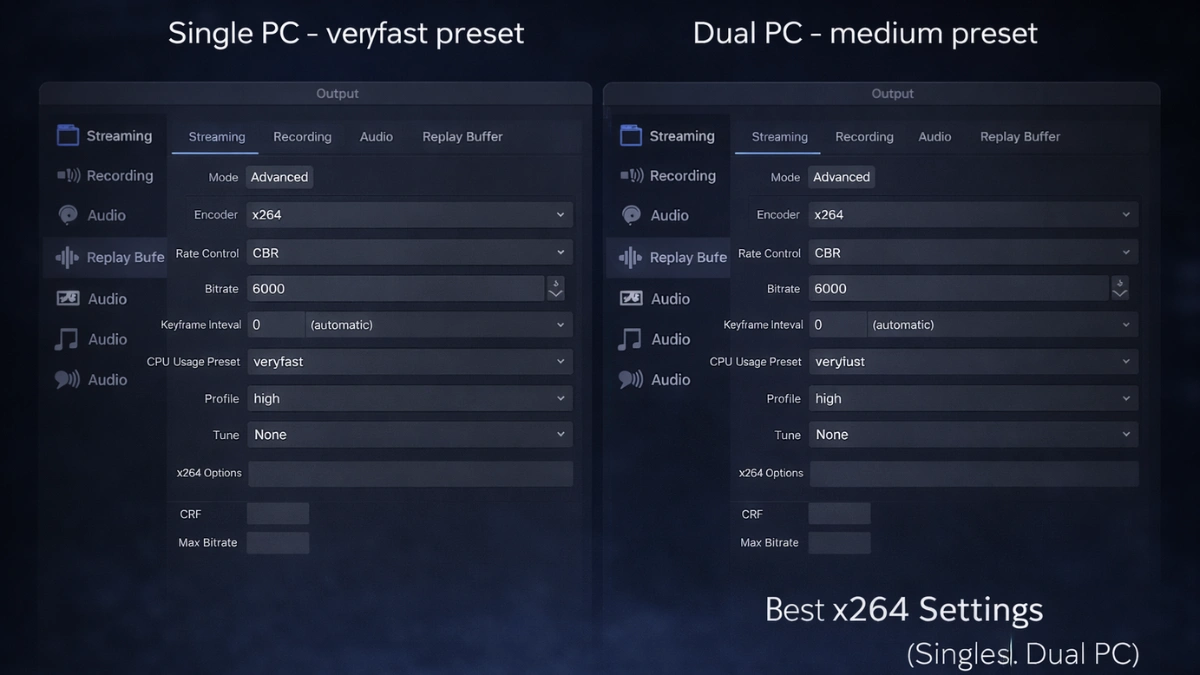
Veryfast is where most single-PC streamers should live. It’s the sweet spot between quality and CPU load. I’ve used veryfast for hundreds of hours of streaming and never felt limited by it.
Faster gives you a small quality bump if your CPU has headroom. On my i9-13900K playing lighter games like Valorant or Apex, faster works fine. During Warzone or Cyberpunk? Veryfast or I start seeing lag.
Fast starts getting risky on single PC. The quality improvement is noticeable if you’re looking for it, but the CPU cost means most gamers will see performance hits.
Medium is realistically dual-PC territory. The quality jump from fast to medium is the biggest in the preset ladder, but you need a CPU that’s not doing anything else.
Slow and slower offer diminishing returns. I’ve tested slow on my dual PC setup and couldn’t see meaningful improvement over medium during live viewing.
One thing I wish someone told me earlier: jumping from veryfast to medium roughly doubles your CPU encoding load. The quality improvement doesn’t double. Keep that ratio in mind.
Best x264 settings for streaming
After testing more configurations than I care to admit, these are the settings that actually work.
SetupPresetBitrateProfileBest ForSingle PC – Light Gamesfaster6000 KbpshighValorant, League, indie gamesSingle PC – Demanding Gamesveryfast6000 KbpshighWarzone, Cyberpunk, any AAADual PCmedium6000 KbpshighDedicated streaming rigDual PC (Overkill)slow6000 KbpshighWhen you want maximum quality
Single PC with light games
When I’m streaming Valorant or doing a chill indie game stream, my CPU barely breaks a sweat. That’s when I push to faster preset:
- Encoder: x264
- Rate Control: CBR
- Bitrate: 6000 Kbps
- Preset: faster
- Profile: high
- Tune: leave blank
Monitor your first few streams. If OBS stats show any encoding lag, drop to veryfast immediately.
Single PC with demanding games
Warzone, Cyberpunk, Hogwarts Legacy, these games want every CPU cycle they can get. Don’t fight them:
- Encoder: x264
- Rate Control: CBR
- Bitrate: 6000 Kbps
- Preset: veryfast
- Profile: high
- Tune: leave blank
I know veryfast sounds like a compromise. It’s not. The quality at 6000 Kbps is genuinely good, and you won’t be apologizing for dropped frames.
Dual PC setup
This is where x264 earns its reputation. With a dedicated encoding PC, you can push medium or even slow:
- Encoder: x264
- Rate Control: CBR
- Bitrate: 6000 Kbps
- Preset: medium (slow if your encoder CPU is beefy)
- Profile: high
- Tune: leave blank
My dual PC setup runs an older i7-10700K as the encoder. Medium preset keeps it around 60% CPU usage with plenty of thermal headroom. Slow pushes it to 85%+ and the quality difference is marginal.
Advanced x264 settings in OBS
Most streamers overcomplicate this section. Here’s what actually matters:
Profile: Use high. It enables all the encoding features that improve quality. Main and baseline exist for compatibility reasons you don’t need to worry about.
Tune: Leave it blank for most content. Film can help with slow, cinematic streams. Animation works for vtubers or cartoon-style content. Zerolatency sounds appealing but actually hurts quality, OBS handles latency fine without it.
Custom x264 options: I’ve experimented with threads, rc-lookahead, and aq-mode settings. After all that testing, my recommendation is to leave this field empty. The defaults work well, and random parameters from Reddit threads cause more problems than they solve.
CPU optimization and process priority
x264 and your game are fighting for the same CPU resources. Managing this conflict keeps both running smoothly.
OBS process priority: Go to Settings → Advanced → Process Priority and select Above Normal. This tells Windows to prioritize OBS over background tasks without starving your game. Never use High or Realtime. I tried it once and my game became a slideshow.
Thread management: Modern CPUs handle this automatically. I spent an embarrassing amount of time manually assigning OBS to specific cores before realizing Windows does it better. Let it work.
Hybrid CPU exception: If you’re on Intel 12th, 13th, or 14th gen with efficiency cores, some streamers report better results forcing OBS onto performance cores only. I haven’t needed this on my 13900K, but it’s worth testing if you see unexplained encoding lag.
For broader system optimization, see the OBS Studio optimization guide.
How to test if x264 is too heavy
OBS tells you exactly when x264 is struggling. You just have to look.
Open View → Stats while streaming. The numbers that matter:
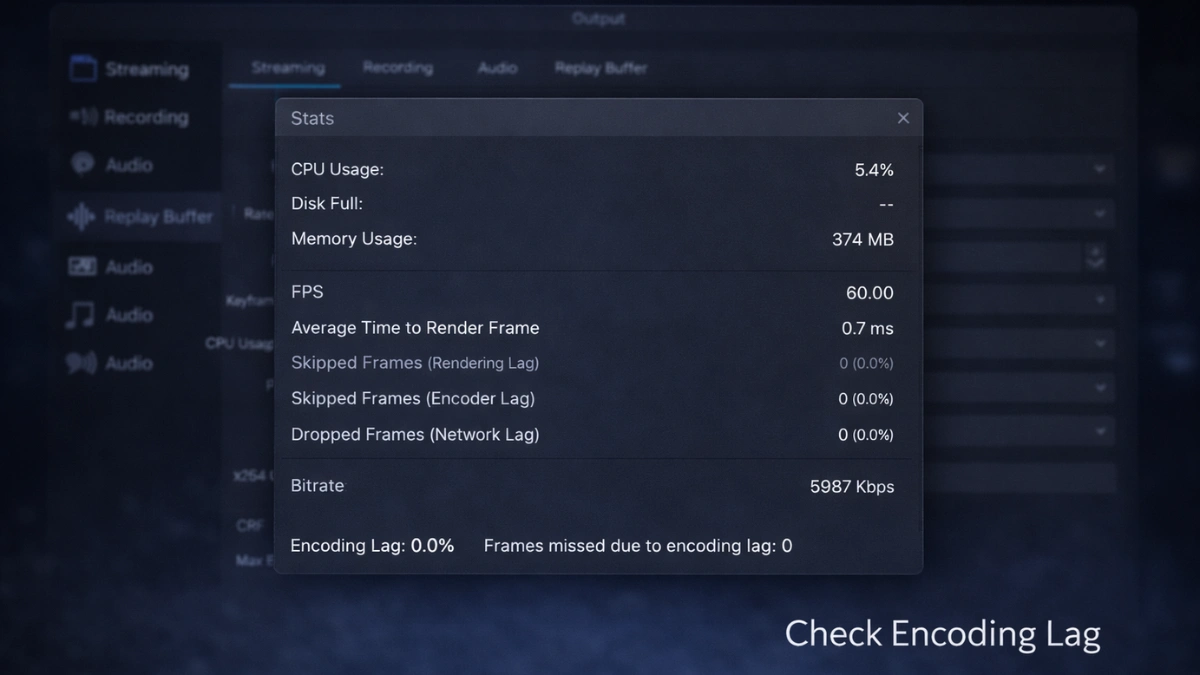
Encoding lag shows what percentage of frames took too long to encode. Zero is perfect. Anything above zero means your preset is too demanding.
Frames missed due to encoding lag counts actual dropped frames. This should always be zero during a stream.
My testing protocol: run a demanding game for at least 20 minutes while streaming. Hot drops in Warzone, busy combat in RPGs—whatever stresses the system most. Menu screens tell you nothing.
If encoding lag appears, don’t hope it goes away. Switch to veryfast. If it persists, switch to NVENC.
x264 vs NVENC: the honest verdict
I’ve gone back and forth on this for years. Here’s where I’ve landed:
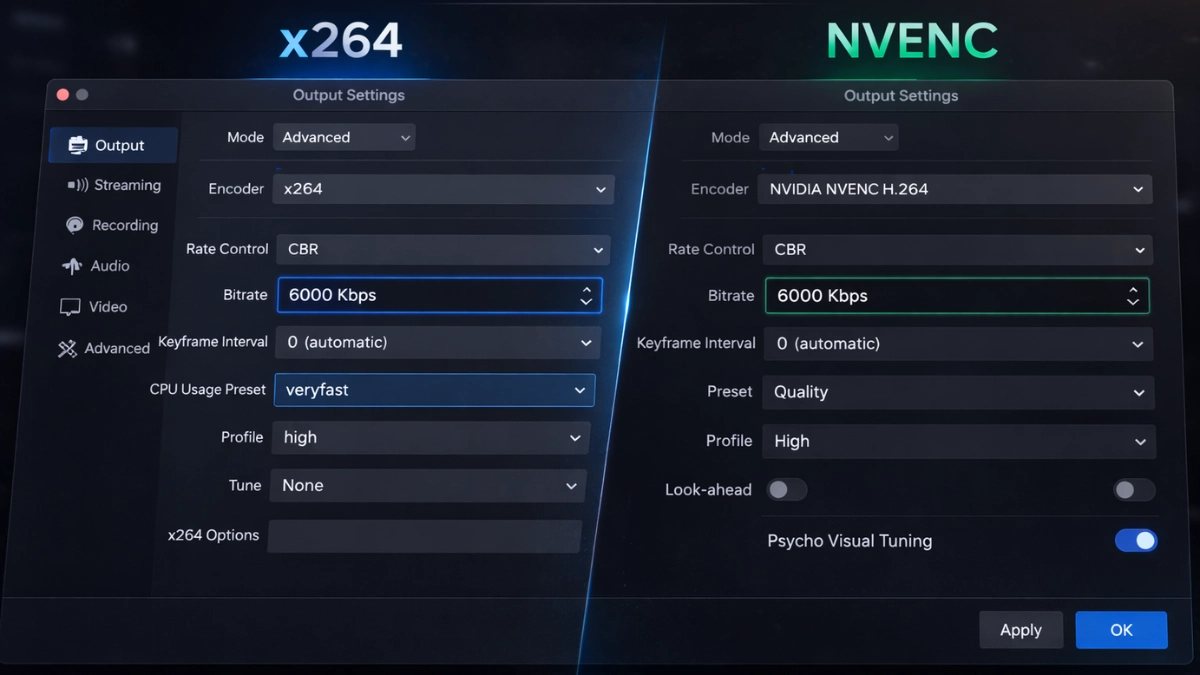
NVENC wins for most streamers. It’s not close. The quality is good enough, the stability is perfect, and you never think about encoding settings again. For single PC streaming especially, NVENC should be your default.
x264 wins in specific situations. Dual PC setups where CPU load doesn’t matter. Very low bitrate streams where encoding efficiency makes a visible difference. Professional broadcasts where you have dedicated hardware and staff to monitor everything.
What actually matters: Your viewers care about smooth playback and good audio. They don’t care whether you used x264 medium or NVENC quality. They will leave if your stream stutters.
My setup today: NVENC on my single PC for gaming streams, x264 medium on my dual PC for professional work. Both look great.
Frequently asked questions
Is x264 actually better quality than NVENC? At the same preset level, yes. But x264 veryfast—the only realistic single-PC preset—produces roughly equal quality to modern NVENC. The gap closed significantly with RTX 20 series.
What preset should I use? Single PC: veryfast for demanding games, faster for light games. Dual PC: medium or slow. Test with OBS stats open.
Why is x264 making my game stutter? Your CPU can’t handle both. Use a faster preset, lower your game settings, or switch to NVENC.
Can I really use x264 on a single PC? Yes, but only with a powerful CPU (8+ cores), only with veryfast or faster preset, and only after testing proves it works.
What bitrate works best with x264? 6000 Kbps for Twitch, up to 12000 for YouTube. Start with platform recommendations.
Final thoughts
The best x264 settings for streaming come down to honesty about your hardware. Veryfast for single PC gaming, medium for dual PC setups, and enough humility to use NVENC when x264 causes problems.
For most streamers in 2025, stability matters more than squeezing an extra 5% compression efficiency. Viewers remember stuttering. They don’t remember whether your encoder was theoretically optimal.
For the complete streaming optimization workflow, covering OBS configuration, audio setup, scenes, and output settings, see the comprehensive streaming setup guide.
Test your settings with actual gameplay. Watch OBS stats like they’re telling you something important, because they are. And remember that the best encoder is whichever one lets your stream run smoothly for hours without you worrying about it.
That charity stream disaster taught me more about encoding than any benchmark ever could. Use x264 when it makes sense. Use NVENC when it doesn’t. Your viewers will thank you either way.
Disclosure: Some links in this post are affiliate links. If you make a purchase through these links, RigPod may earn a commission at no additional cost to you. See our Affiliate Disclosure for more information.