On this page
Running out of VRAM mid-game creates some of the most frustrating performance issues in PC gaming. One moment you’re enjoying smooth framerates, the next you’re watching a slideshow as your system desperately shuffles data between video memory and system RAM. I’ve diagnosed countless performance complaints from friends that traced back to VRAM exhaustion, often on cards with seemingly adequate memory that was being wasted on settings that didn’t matter.
Understanding how games use VRAM, recognizing exhaustion symptoms, and optimizing allocation prevents these problems. Whether you’re running an 8GB card struggling with modern titles or a 16GB monster you want to maximize, proper VRAM management ensures consistent performance. For the complete picture on maximizing your graphics card’s potential, see the comprehensive GPU optimization guide.
Understanding VRAM and its role
Video RAM (VRAM) is dedicated high-speed memory on your graphics card that stores data the GPU needs quick access to during rendering. Textures, shaders, framebuffers, and geometry data all reside in VRAM during gameplay. Unlike system RAM, VRAM connects directly to the GPU through an extremely fast memory bus, enabling the bandwidth modern games demand.
When games request more VRAM than your card provides, the system must swap data between VRAM and slower system RAM. This swapping creates severe performance penalties. The GPU waits for data that should be instantly available. The result is stuttering, hitching, and dramatic framerate drops that make games unplayable.
Modern games are increasingly VRAM-hungry. Titles from 2020 ran comfortably on 6-8GB cards. Current AAA releases regularly exceed 8GB at maximum settings, with some pushing beyond 12GB at 4K. This escalation makes VRAM management increasingly important, especially for mid-range cards that might otherwise deliver excellent performance.
VRAM capacity doesn’t directly affect performance when you have enough: an 8GB card and 16GB card perform identically if a game only uses 6GB. But when usage exceeds capacity, the larger card maintains performance while the smaller card collapses. Understanding your VRAM ceiling helps configure games appropriately. Note that VRAM speed and VRAM capacity are different things, faster memory improves bandwidth but doesn’t increase how much data the card can hold.
Monitoring VRAM usage
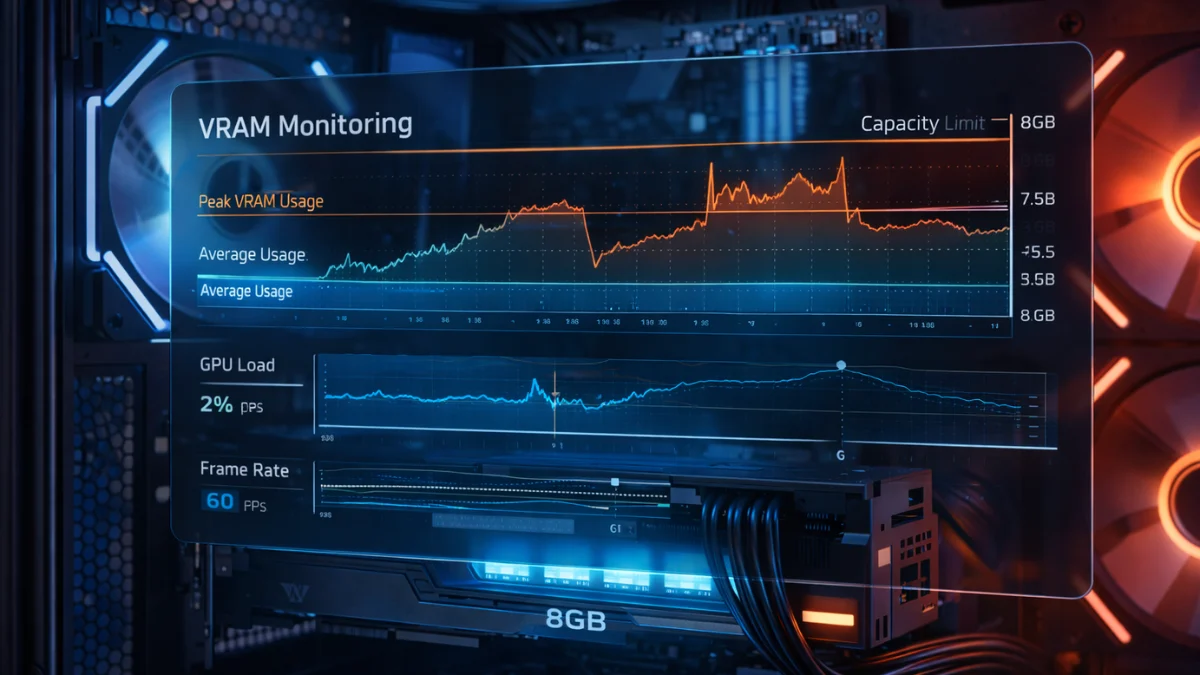
Before optimizing VRAM usage, you need visibility into current consumption. Several tools provide real-time VRAM monitoring during gameplay.
MSI Afterburner displays VRAM usage through its on-screen display. Configure the OSD to show “GPU Memory Usage” alongside framerate and temperatures. Watching this value during gameplay reveals how close you’re running to your card’s limits.
NVIDIA users can access monitoring through GeForce Experience and the NVIDIA Control Panel. The NVIDIA Control Panel settings guide covers enabling performance overlays and configuring texture-related settings that affect VRAM usage. AMD’s Radeon Software includes built-in monitoring. The AMD Radeon settings guide covers enabling the performance overlay and interpreting memory metrics.
The critical metric is peak usage, not average. Games may run at 7GB average but spike to 9GB during complex scenes. If your card has 8GB, those spikes cause problems despite comfortable average consumption. Monitor during the most demanding areas, busy combat, heavily detailed environments, cutscenes with complex effects.
GPU-Z provides a sensors tab showing VRAM usage in real-time. The “Memory Used” value updates continuously, and you can log data for later analysis. Less convenient than Afterburner’s OSD but useful for detailed investigation.
Task Manager in Windows 11 shows GPU memory usage under the Performance tab. Select your GPU, and “Dedicated GPU memory” displays current VRAM consumption. This works for quick checks without installing additional software.
In-game indicators exist in many modern titles. Games increasingly display VRAM usage estimates in graphics settings menus, showing how much memory current settings require. These estimates aren’t always accurate but provide useful guidance during configuration.
I check VRAM usage whenever I start a new game, adjusting settings until consumption sits comfortably below my card’s capacity with headroom for spikes. This proactive approach prevents mid-game performance problems.
Texture quality’s massive impact
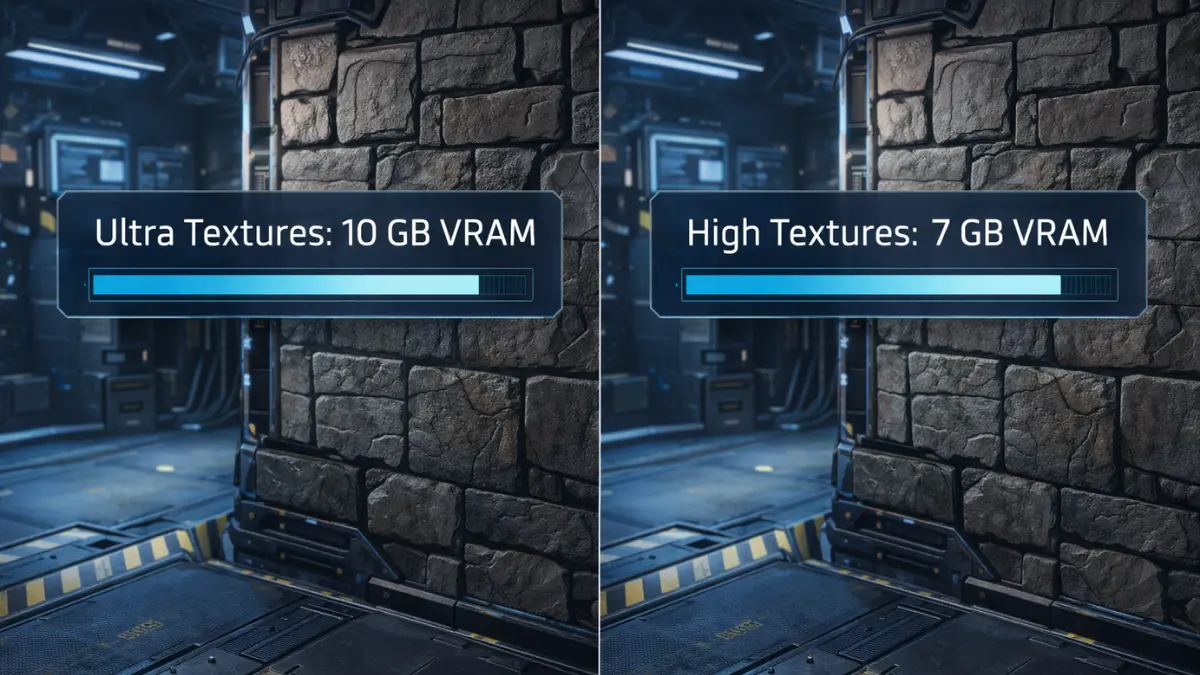
Texture quality represents the single largest VRAM consumer in most games. High-resolution textures provide visible detail improvements but demand substantial memory. Understanding this relationship guides effective optimization.
Moving from Ultra to High texture quality often reduces VRAM usage by 2-4GB while producing minimal visible difference, especially during actual gameplay rather than screenshot comparisons. The textures you notice most are those close to your camera; distant surfaces compress so heavily at screen resolution that original texture quality becomes irrelevant.
Testing texture settings systematically reveals acceptable quality levels. Start with maximum textures, note VRAM usage, then reduce one step. Compare visual quality in similar scenes. Most players find High textures acceptable once they stop pixel-peeping screenshots and actually play.
Texture streaming in modern games affects how VRAM gets used. Games stream textures dynamically, loading higher resolution versions as you approach objects. Aggressive texture streaming can cause visible pop-in but reduces peak VRAM requirements. Some games offer texture streaming quality options that trade visual consistency for memory efficiency.
My approach: I set texture quality to the highest level that keeps VRAM usage at 80% or less of my card’s capacity during peak moments. On my 12GB RTX 4070 Ti, that typically means Ultra textures in most games. On an 8GB card, High textures often represent the practical ceiling for current AAA titles.
Resolution and VRAM relationship
Higher resolutions increase VRAM consumption beyond just texture requirements. Framebuffers, render targets, and post-processing effects all scale with resolution, consuming additional memory.
4K gaming dramatically increases VRAM requirements compared to 1080p. A game using 6GB at 1080p might consume 10GB+ at 4K with identical settings. This scaling makes VRAM capacity more critical for high-resolution gaming than for 1080p play.
Render scaling offers interesting tradeoffs. Running internal resolution at 80% while displaying at native resolution reduces VRAM consumption for framebuffers while maintaining UI sharpness. Combined with DLSS or FSR upscaling, this approach enables high-quality visuals at reduced VRAM cost.
Upscaling technologies provide an unexpected VRAM benefit. DLSS, FSR, and XeSS render at lower internal resolutions before upscaling, which reduces the memory footprint of frame buffers and render targets. If you’re hitting VRAM limits at native 4K, enabling DLSS Quality mode can free 1-2GB of memory while maintaining visual quality.
Ray tracing compounds VRAM demands significantly. RT effects require additional data structures (BVH acceleration structures) that consume substantial memory. Enabling ray tracing while VRAM-constrained often creates worse outcomes than disabling RT and running higher base settings.
If you’re VRAM-limited, consider whether ray tracing at reduced settings actually looks better than no ray tracing with higher traditional settings. In my testing, high-quality rasterized graphics often outperform compromised ray tracing both visually and performatively.
Other VRAM consumers
Beyond textures and resolution, several settings affect VRAM consumption meaningfully.
Shadow quality stores shadow maps in VRAM. Ultra shadows can consume 1-2GB more than Medium shadows while providing differences barely visible during gameplay. Shadows represent excellent candidates for reduction when approaching VRAM limits.
Ambient occlusion quality affects VRAM usage, particularly screen-space methods that store additional buffers. HBAO+ and similar techniques consume more than basic SSAO implementations.
Anti-aliasing method matters significantly. TAA requires history buffers stored in VRAM. MSAA multiplies framebuffer size by sample count, 4x MSAA literally uses 4x the framebuffer memory. FXAA and SMAA consume minimal additional VRAM, making them efficient choices for constrained systems.
View distance and LOD settings affect how much geometry and texture data loads simultaneously. Reducing draw distance or level-of-detail quality decreases peak VRAM requirements during expansive outdoor scenes.
Volumetric effects (fog, clouds, lighting) store 3D texture data consuming meaningful VRAM. Reducing volumetric quality often provides substantial memory savings with modest visual impact.
When optimizing for VRAM constraints, I prioritize reductions that provide the most memory savings with least visual impact: textures from Ultra to High, shadows from Ultra to High, volumetrics down one tier. These changes often free 3-4GB while maintaining overall visual quality. Not all games are VRAM-intensive, competitive shooters like Valorant run comfortably on 4GB cards at competitive settings. See the Valorant GPU settings guide for lightweight optimization on limited hardware.
Game-specific VRAM management
Different games handle VRAM differently, requiring tailored approaches.
Texture pool settings in some games (notably recent Call of Duty titles) let you explicitly limit VRAM texture usage. Setting this below your card’s capacity reserves memory for other purposes, preventing exhaustion during peak moments.
Shader caching stores compiled shaders in VRAM for quick access. Large shader caches improve performance but consume memory. Some games allow cache size configuration; limiting cache size helps VRAM-constrained systems at the cost of occasional shader compilation stutters.
Asset streaming settings control how aggressively games load data. Reducing streaming quality or enabling aggressive streaming settings reduces peak VRAM requirements while potentially increasing pop-in or texture loading delays.
DLSS/FSR frame generation consumes significant VRAM for the additional buffers required. If you’re near VRAM limits, frame generation might push you over, causing worse performance than running without it at lower settings.
I maintain game-specific profiles noting optimal settings for VRAM efficiency in titles I play regularly. This documentation prevents re-learning optimal configurations every time I return to a game after months away.
Symptoms of VRAM exhaustion
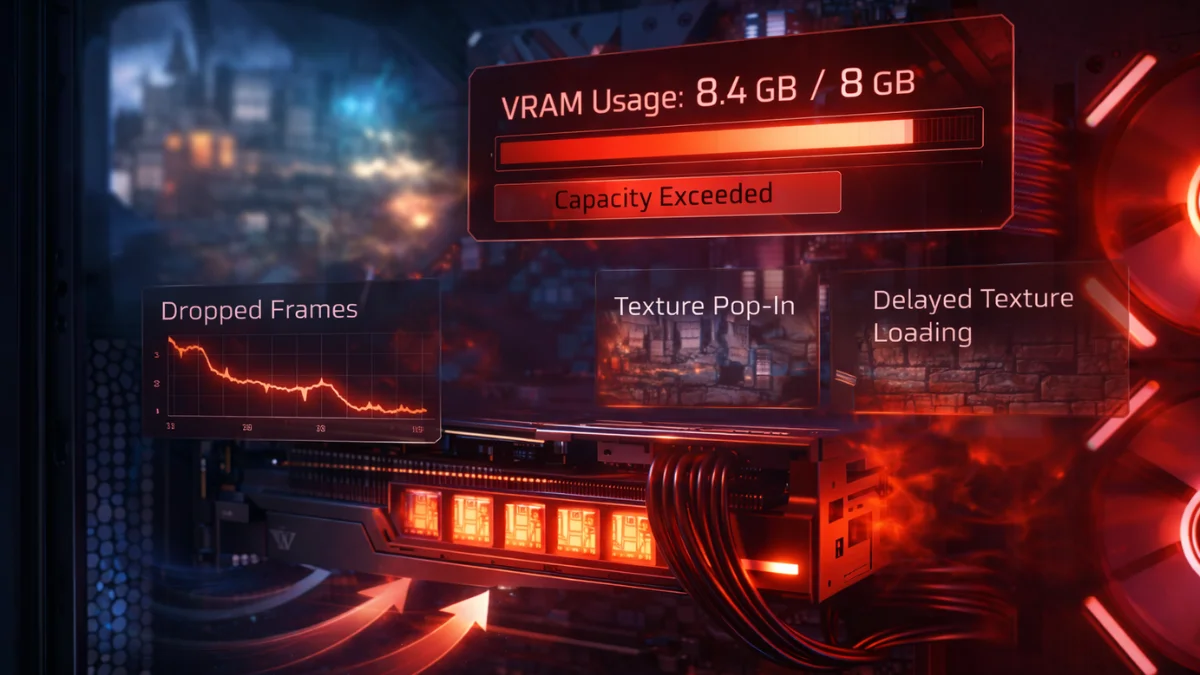
Recognizing VRAM problems helps distinguish them from other performance issues requiring different solutions.
Stuttering when moving through environments often indicates VRAM swapping as new areas load. The game runs smoothly when stationary, then hitches dramatically when traversing the world.
Sudden framerate drops in specific areas suggest those locations exceed VRAM capacity while others don’t. Complex scenes with many unique textures trigger exhaustion that simpler areas avoid.
Texture pop-in and delayed loading show the game struggling to fit textures in memory. Lower-resolution textures appear first, then slowly sharpen as higher-resolution versions stream in.
System memory usage spikes during gaming indicate VRAM overflow to system RAM. If your RAM usage jumps significantly during specific games, VRAM exhaustion is likely occurring.
Consistent performance in benchmarks but inconsistent in gameplay suggests real-world asset variety exceeds benchmark asset requirements. Benchmarks often loop through limited areas, never triggering the peak VRAM consumption actual gameplay creates.
If you experience these symptoms while monitoring shows VRAM at or near capacity, VRAM exhaustion is almost certainly your problem. Reducing settings until usage drops 10-20% below capacity typically resolves the issues.
Troubleshooting persistent VRAM issues
When standard optimization doesn’t resolve memory problems, deeper investigation is needed.
Driver issues can cause memory allocation problems. A corrupted or buggy driver may allocate VRAM inefficiently. Start with a clean driver installation. DDU (Display Driver Uninstaller) in Safe Mode followed by a fresh driver install resolves many mysterious memory issues.
VRAM temperatures affect stability. VRAM modules generate heat, especially under heavy texture loads. If you’re experiencing crashes or artifacts alongside VRAM issues, thermal throttling may be contributing.
Artifacts may indicate failing VRAM. Consistent visual glitches that persist regardless of settings could indicate failing video memory rather than capacity issues.
Memory overclocking can help bandwidth, not capacity. If textures load slowly despite available capacity, memory overclocking might improve streaming performance.
Planning for future VRAM requirements
VRAM demands increase with each game generation. Planning for future requirements influences both game settings and hardware purchasing decisions.
Current recommended minimums have shifted from 8GB to 12GB for high-quality 1440p gaming. Cards with 8GB VRAM still perform well but increasingly require settings compromises in demanding titles. 16GB provides comfortable headroom for current and near-future games.
Resolution aspirations should influence VRAM priorities. 4K gaming demands more VRAM than 1080p; buyers targeting high-resolution gaming should prioritize capacity accordingly.
Game genres matter for VRAM requirements. Open-world games with diverse environments stress VRAM more than linear games with controlled asset streaming. Competitive shooters typically demand less VRAM than exploration-heavy titles.
When my friends ask about graphics card purchases, I emphasize VRAM capacity alongside GPU performance. A faster GPU with less VRAM may benchmark higher today but hit walls sooner as games evolve. The 12GB RTX 4070 Ti will age better than a hypothetical 8GB card with identical core performance.
Final thoughts
Understanding VRAM’s role, monitoring usage actively, and configuring games appropriately ensures consistent performance regardless of your card’s capacity. The goal isn’t maximizing settings, it’s finding the highest settings your VRAM supports sustainably, then enjoying smooth framerates without exhaustion-induced interruptions.
Disclosure: Some links in this post are affiliate links. If you make a purchase through these links, RigPod may earn a commission at no additional cost to you. See our Affiliate Disclosure for more information.