On this page
The streaming software debate that never dies. Every week someone in my Austin gaming community asks whether they should use Streamlabs or stick with vanilla OBS Studio. I’ve spent considerable time with both applications over the past three years, switching back and forth for different streaming scenarios, and the answer isn’t as straightforward as either fanbase wants to admit.
Both applications share the same core engine, Streamlabs is literally built on top of OBS Studio’s open-source code. But the experience of using them differs dramatically, and those differences matter depending on what kind of streamer you are and what hardware you’re running. This comparison is part of the complete streaming setup and optimization guide, which covers every aspect of building a professional streaming workflow.
The fundamental difference
OBS Studio is the original, maintained by volunteers and the OBS Project team. It’s lightweight, stable, and focused purely on capturing and broadcasting video. Nothing more, nothing less.
Streamlabs Desktop (formerly Streamlabs OBS) takes that OBS foundation and wraps it in a feature-rich package. Built-in alerts, overlays, chat widgets, tip integration, and a marketplace of themes come bundled together. The goal is providing an all-in-one streaming solution where you never need to leave the application.
This philosophical difference shapes everything else about these programs. OBS Studio assumes you’ll piece together your own workflow using separate tools. Streamlabs assumes you want everything integrated from the start.
Resource usage and performance
Here’s where things get measurable, and where I have strong opinions backed by actual testing.
On my streaming PC running a Ryzen 7 7800X3D and RTX 4070 Ti, OBS Studio idles at roughly 180MB of RAM with a moderately complex scene loaded. CPU usage during NVENC streaming sits between 2-4%. The application is remarkably efficient.
Streamlabs Desktop on the same system idles at 650-800MB of RAM before I even start streaming. That’s not a typo. The integrated widgets, browser sources for alerts, and background services all consume resources whether you’re actively using them or not. CPU usage during streaming runs 5-8% higher than vanilla OBS in my testing.
For high-end systems, this difference is negligible. My setup handles Streamlabs without breaking a sweat. But when I helped my neighbor’s kid set up streaming on his budget gaming PC, a Ryzen 5 5600 with 16GB RAM and an RTX 3060, the performance gap became obvious. His system stuttered noticeably in games while running Streamlabs but performed fine with OBS Studio.
If you’re streaming on a mid-range or budget system, OBS Studio’s lower overhead translates directly into better gaming performance while live. That’s not marketing fluff; it’s measurable frames per second you’re leaving on the table with Streamlabs.
Ease of setup for beginners
Streamlabs wins this category decisively, and I say that as someone who recommends OBS Studio to most people.
First-time streamers opening Streamlabs get walked through account connection, theme selection, and basic configuration with a polished wizard. Within fifteen minutes, someone with zero streaming experience can have a functional setup with overlays, alerts, and chat integration all working.
That same person opening OBS Studio faces a blank canvas. Scenes and sources mean nothing to them. Connecting alerts requires creating accounts on separate services, copying widget URLs, and configuring browser sources manually. The learning curve is real. For those who choose OBS Studio, the OBS Studio complete setup guide for beginners walks through every step of the initial configuration.
I’ve watched this play out repeatedly. Emily’s cousin wanted to start streaming last summer. She tried OBS Studio first, got overwhelmed, and nearly gave up. I suggested Streamlabs, and she was live within an hour. Six months later, she switched to OBS Studio after learning what she actually needed, but that initial Streamlabs experience kept her in the game.
For absolute beginners who want to stream this weekend without watching hours of tutorials, Streamlabs provides the faster path to going live.
Feature comparison
Streamlabs bundles features that OBS Studio users need to add separately:
Integrated alerts and widgets come ready to use in Streamlabs. Follower notifications, subscriber alerts, donation pop-ups, and chat boxes work out of the box after connecting your streaming account. OBS Studio users must set up StreamElements, Streamlabs alerts (yes, you can use their alerts with vanilla OBS), or similar services and add them as browser sources.
Selective recording lets Streamlabs record a different scene than what you’re broadcasting. Want to stream with your webcam overlay but record clean gameplay for YouTube? Streamlabs handles this natively. OBS Studio added similar functionality recently, but it’s less intuitive to configure.
App store and themes give Streamlabs users access to pre-made overlay packages and widgets. Some are free, others cost money. The quality varies wildly, I’ve seen professional-looking themes and absolute garbage in the same marketplace.
Multistreaming to Twitch, YouTube, and Facebook simultaneously is built into Streamlabs. OBS Studio users need third-party services like Restream to accomplish this.
Stream deck integration works with both applications, but Streamlabs offers tighter integration with their own mobile app that mimics Stream Deck functionality for free.
However, OBS Studio counters with advantages of its own:
Plugin ecosystem for OBS Studio is massive and mature. Advanced features like NDI streaming, virtual cables, advanced scene switching, and specialized game capture tools exist as community plugins. Streamlabs supports some plugins but not the full library.
Stability has historically favored OBS Studio. Streamlabs has improved significantly, but I still encounter more crashes and weird behavior with it than vanilla OBS. Over three years of streaming, OBS Studio has crashed on me maybe five times. Streamlabs crashed five times in my first month of testing it extensively.
Update frequency for OBS Studio tends to be more measured and stable. Streamlabs pushes updates more frequently, which sometimes introduces bugs that take a week or two to fix.
Recording quality and options
Both applications use the same encoding backends, so maximum quality potential is identical. A recording made with NVENC in Streamlabs looks exactly like one made with NVENC in OBS Studio at matching settings.
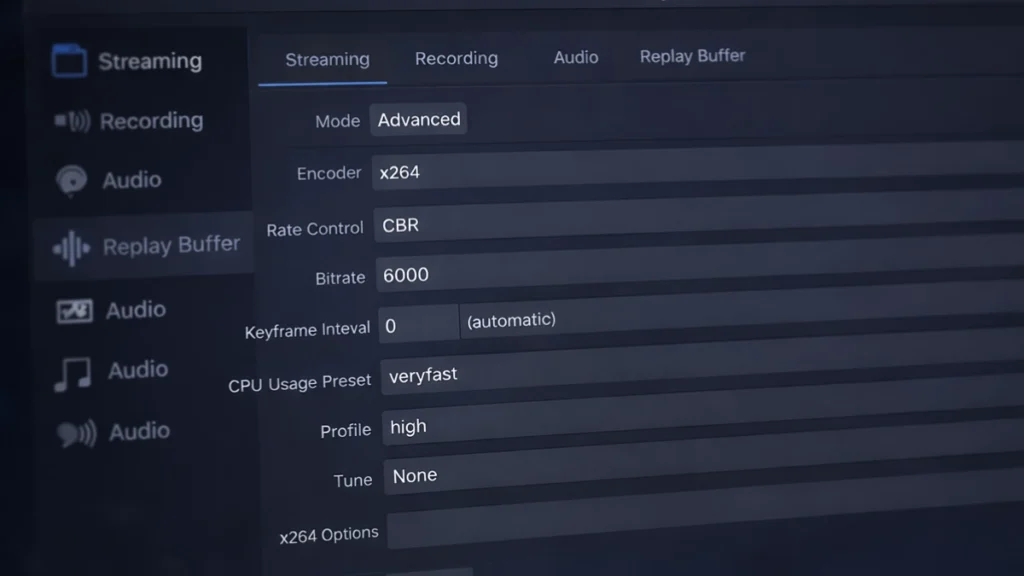
The difference lies in workflow. OBS Studio’s recording options are straightforward, pick your encoder, set your bitrate or quality level, choose a format, and go. Streamlabs adds a “replay buffer” feature more prominently and makes simultaneous streaming and recording easier to manage.
For streamers who also create YouTube content from their streams, Streamlabs’s selective recording feature genuinely saves time. Recording clean gameplay while streaming with overlays eliminates post-processing work. I started using this feature specifically and found myself editing less.
That said, OBS Studio users can achieve the same result using the Source Record plugin. It requires more setup but works just as well.
My real-world usage
I stream primarily with OBS Studio for a simple reason: reliability. When I go live, I need confidence that my software won’t hiccup, crash, or decide to update at the worst possible moment. OBS Studio delivers that consistency.
My alerts run through StreamElements, which I’ve configured as browser sources in OBS. Chat integration happens through a separate browser window on my second monitor. This piecemeal approach takes more initial setup but gives me granular control over every element.
When I helped Jack’s preschool teacher set up a classroom streaming setup for virtual show-and-tell (COVID-era project that stuck around), I used Streamlabs. She needed something dead simple that wouldn’t require my ongoing tech support. The all-in-one approach made sense for her use case.
For competitive gaming streams where every frame matters, I always recommend OBS Studio. The resource overhead difference becomes meaningful when you’re trying to maintain 240fps in Valorant while broadcasting. Several friends in Austin’s competitive scene switched from Streamlabs to OBS Studio and reported immediate performance improvements.
The honest recommendation
Choose Streamlabs if:
- You’re brand new to streaming and want to go live quickly
- Your PC has plenty of headroom (RTX 3070 or better, 32GB RAM)
- You want integrated alerts, overlays, and widgets without extra configuration
- The convenience of an all-in-one solution appeals to you
- You’re streaming casual content where maximum game performance isn’t critical
Choose OBS Studio if:
- System resources are limited or you’re playing demanding games
- Stability and reliability are your top priorities
- You want maximum control over your streaming setup
- You plan to use advanced plugins or custom configurations
- You’re comfortable setting up external services for alerts and widgets
There’s no universally correct answer. Both applications can produce identical stream quality when configured properly. The choice comes down to whether you value convenience and integration (Streamlabs) or efficiency and control (OBS Studio).
I’ve genuinely used both for extended periods and don’t think either choice is wrong. The streaming software matters far less than actually going live consistently and improving your content. Pick one, learn it well, and focus on what you’re creating rather than obsessing over tools.
Making the switch
If you’ve been using one application and want to try the other, both support importing scenes and settings. Streamlabs can import OBS Studio profiles directly. Going the opposite direction requires manual recreation, but your sources and scene structure translate cleanly.
Don’t feel locked into your initial choice. Many successful streamers started with Streamlabs, learned the fundamentals, and migrated to OBS Studio as their needs evolved. Others tried OBS Studio, found it overwhelming, and happily settled into Streamlabs permanently.
The best streaming software is whichever one you’ll actually use consistently.
Disclosure: Some links in this post are affiliate links. If you make a purchase through these links, RigPod may earn a commission at no additional cost to you. See our Affiliate Disclosure for more information.