On this page
Your graphics card represents the single largest investment in gaming performance, yet most gamers never tap its full potential. Default settings leave performance on the table, thermal management goes unattended, and driver configurations remain at generic factory presets. After years of testing GPU optimization techniques across NVIDIA and AMD hardware, I’ve documented exactly which adjustments deliver measurable improvements and which waste your time.
This guide covers every aspect of GPU optimization, from driver-level configuration to thermal management, overclocking to troubleshooting. Whether you’re chasing competitive framerates or maximizing visual quality, proper GPU configuration transforms your gaming experience.
How do you configure GPU drivers for maximum gaming performance?
Your graphics driver includes a control panel with dozens of settings affecting every game you play. These driver-level configurations establish the foundation that in-game settings build upon. Optimizing them once improves performance across your entire library without touching individual game configurations.
NVIDIA’s Control Panel and AMD’s Radeon Software each provide extensive customization options. Power management modes determine how aggressively your GPU conserves energy versus maintaining performance consistency. Texture filtering settings balance visual quality against rendering overhead. Latency options control frame queuing behavior that directly affects input responsiveness.
The impact of proper driver configuration often surprises gamers accustomed to relying solely on in-game settings. Low latency modes can reduce input lag by 10-15 milliseconds, immediately perceptible in competitive shooters. Power management optimization eliminates the micro-stutters caused by aggressive clock speed transitions. Texture filtering adjustments provide free performance in exchange for imperceptible quality differences.
Creating game-specific profiles extends these benefits further. Different games benefit from different configurations, competitive titles prioritize latency reduction while single-player experiences might favor visual quality. Driver profiles automatically apply appropriate settings when each game launches.
Should you always update to the latest GPU drivers?
Graphics drivers translate your games’ rendering instructions into operations your GPU executes. Driver quality directly affects performance, stability, and feature availability. Managing driver updates strategically, rather than blindly installing every release, maintains system stability while capturing genuine improvements.
Driver updates arrive frequently from both NVIDIA and AMD, often timed around major game releases. These Game Ready or Adrenalin updates include optimizations for specific titles that can boost performance by double-digit percentages in featured games. However, new drivers occasionally introduce regressions affecting other games or system stability. Balancing the desire for optimization against stability risk requires informed decision-making.
Clean driver installation removes accumulated cruft that standard updates carry forward. Tools like Display Driver Uninstaller (DDU) provide thorough removal that eliminates conflicts and corruption causing mysterious issues. When switching between GPU brands, clean installation becomes mandatory, AMD and NVIDIA driver remnants coexisting cause significant problems.
Driver rollback provides essential protection when updates cause problems. Maintaining records of which driver versions worked well enables quick restoration when new releases disappoint. Both Windows Device Manager and manual installation from manufacturer archives support returning to known-good configurations.
Understanding driver types helps prioritize updates. Game Ready drivers target cutting-edge optimization, while Studio drivers prioritize stability for professional applications. Hotfix releases address critical issues discovered after major releases. Each type serves different user priorities.
How do you safely overclock your GPU for more FPS?
Overclocking pushes your graphics card beyond factory specifications, extracting additional performance without hardware upgrades. Modern GPUs include extensive protections making the process remarkably safe, thermal limits, power limits, and voltage constraints prevent damage even when settings prove unstable. The potential reward is 5-15% additional performance depending on your specific card’s silicon quality.
Every GPU chip varies slightly in quality due to manufacturing tolerances. Manufacturers set conservative default frequencies ensuring stability across all units, leaving headroom that overclocking unlocks. Your particular card might sustain clocks significantly higher than defaults, delivering free performance that was always available but never accessed.
Core clock and memory clock represent the two primary overclocking targets. Core clock determines how fast GPU processing cores operate, typically providing the most noticeable performance gains. Memory clock affects VRAM bandwidth, benefiting texture-heavy workloads and high-resolution gaming. Both contribute to overall improvement, though optimal ratios vary by game and resolution.
The overclocking process follows iterative methodology: increase clocks modestly, test stability through benchmarks and gameplay, repeat until instability appears, then retreat to the last stable configuration. Patience during testing prevents the frustration of crashes during important gaming sessions. Proper stress testing validates that your overclock survives sustained load, not just brief benchmark runs.
Software tools like MSI Afterburner provide the interface for adjustment and monitoring regardless of GPU brand. Creating and saving profiles preserves your stable settings for automatic application.
Does undervolting your GPU improve performance?
Undervolting represents the opposite philosophy from overclocking, rather than pushing hardware harder, you’re asking it to accomplish the same work with less energy. Modern GPUs ship with conservative voltage settings ensuring stability across all silicon samples, meaning your specific card likely runs at higher voltage than necessary. Reducing this excess voltage decreases heat output and power consumption while maintaining identical performance.
The benefits extend beyond energy savings. Lower temperatures enable sustained boost clocks that thermal throttling would otherwise reduce. Quieter operation results from fans working less aggressively. Power supplies face reduced load, improving system-wide efficiency. In some cases, undervolted GPUs actually perform better than stock because consistent temperatures prevent the clock speed reductions that heat triggers.
Voltage-frequency curves govern GPU behavior, specifying which clock speeds the card attempts at each voltage point. Modern overclocking tools expose these curves for manipulation, enabling precise control over the voltage-performance relationship. Rather than blanket voltage reduction, you can target specific operating points for optimal efficiency.
Power limit adjustments provide simpler efficiency gains without curve manipulation. Reducing power limits forces your GPU to operate more efficiently within constrained power budgets. The performance reduction is often smaller than the power reduction, a 20% power limit decrease might only cost 5-8% performance while dramatically reducing heat and noise.
The undervolting process requires stability testing similar to overclocking, validating that reduced voltage doesn’t cause crashes or artifacts under sustained load.
What GPU temperature is safe for gaming?
Heat is the invisible enemy of GPU performance. Modern graphics cards generate substantial thermal output under load, and managing that heat determines whether you experience consistent framerates or frustrating throttling. When temperatures approach safety limits, GPUs automatically reduce clock speeds to prevent damage, protecting hardware while sacrificing the performance you paid for.
Understanding healthy temperature ranges provides context for monitoring. Idle temperatures between 30-50°C are normal for most configurations. Gaming temperatures between 65-80°C represent the optimal operating range. Approaching 83-90°C triggers thermal management that progressively reduces performance. Sustained operation at maximum temperatures accelerates component aging even when immediate throttling doesn’t occur.
Multiple factors influence GPU temperatures. Case airflow determines the ambient temperature your card must overcome. Dust accumulation insulates heatsinks and clogs fans, progressively degrading cooling effectiveness. Thermal paste between GPU die and heatsink degrades over years of thermal cycling. Fan curves balance noise against cooling aggression.
Custom fan curves represent the simplest intervention, trading increased noise for lower temperatures. More aggressive curves that ramp fans earlier prevent temperatures from climbing into problematic ranges. The noise tradeoff matters less for headset users who won’t hear additional fan sound during gaming.
Monitoring tools provide essential visibility into thermal behavior. Real-time temperature display during gaming reveals patterns invisible without instrumentation, gradual temperature climbs, sudden spikes during demanding scenes, and throttling events that correlate with performance drops.
How do you optimize VRAM for better gaming performance?
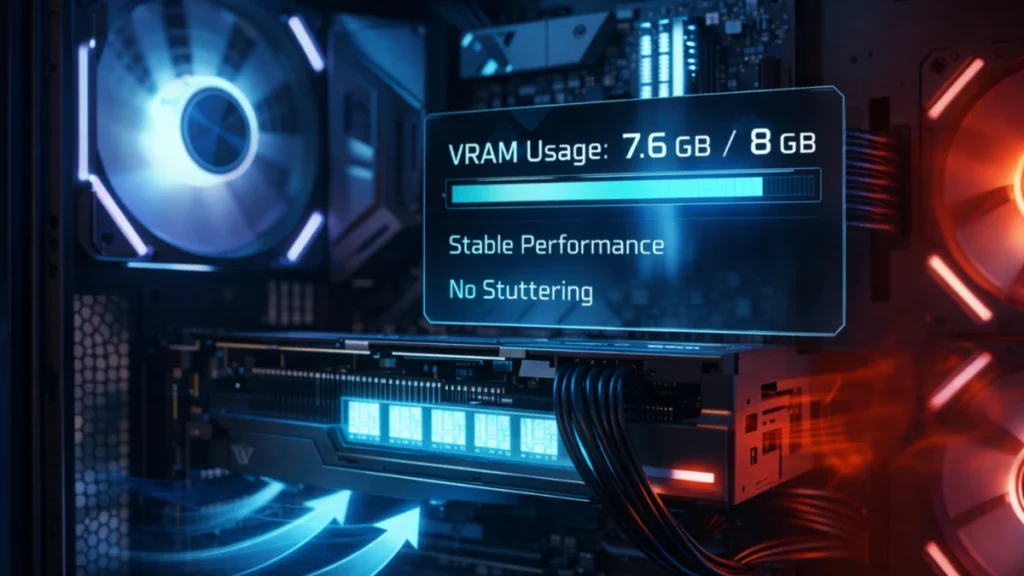
VRAM exhaustion creates some of gaming’s most frustrating performance problems. When games demand more video memory than your card provides, the system shuffles data between fast VRAM and slower system RAM. This swapping introduces severe stuttering and framerate collapse that transforms smooth gameplay into unplayable slideshows. Understanding VRAM usage and managing allocation prevents these disruptions.
Modern games consume increasingly large amounts of video memory. Titles from just a few years ago ran comfortably on 6GB cards; current releases regularly exceed 8GB at maximum settings, with some pushing beyond 12GB at 4K resolution. This escalating demand makes VRAM management increasingly important, particularly for mid-range cards that deliver excellent GPU performance but carry limited memory capacity.
Texture quality represents the largest VRAM consumer in most games. Moving from Ultra to High textures often saves 2-4GB while producing minimal visible difference during actual gameplay rather than screenshot comparisons. The textures you notice most are those nearest your camera; distant surfaces compress heavily regardless of original quality settings.
Resolution compounds VRAM requirements beyond texture needs. Framebuffers, render targets, and post-processing effects all scale with pixel count. A game comfortable at 1080p might exhaust VRAM at 4K with identical quality settings. Understanding this relationship guides appropriate configuration for your specific resolution target.
Monitoring VRAM usage during gameplay reveals how close you’re running to capacity, enabling proactive adjustment before problems manifest.
Is multi-GPU worth it for gaming in 2026?
Running multiple graphics cards in tandem once represented the ultimate enthusiast configuration. SLI and CrossFire promised doubled performance for gamers willing to invest in matching GPUs, robust power supplies, and cases with adequate cooling. The reality proved more complicated, and both technologies have largely faded from consumer relevance, understanding why helps avoid outdated optimization advice.
Both NVIDIA and AMD have effectively abandoned consumer multi-GPU support. NVIDIA discontinued SLI on RTX 40-series cards entirely, while AMD’s RDNA architecture dropped CrossFire compatibility. This abandonment wasn’t arbitrary, developers stopped supporting multi-GPU profiles because implementation effort exceeded the benefit for a tiny fraction of users.
Modern rendering techniques compound compatibility challenges. Temporal anti-aliasing, frame generation, and other technologies relying on consistent frame history work poorly with traditional multi-GPU approaches that alternate rendering between cards. The techniques making modern games look impressive are fundamentally incompatible with multi-GPU scaling.
For gamers considering used hardware or possessing existing multi-GPU setups, narrow use cases remain. Professional workloads in video rendering, 3D animation, and machine learning often scale across multiple GPUs effectively. Older games released during multi-GPU’s peak sometimes include excellent support profiles. Display driving for extreme multi-monitor configurations occasionally justifies additional cards.
For gaming specifically, the money spent on a second graphics card delivers far more value applied toward a single more powerful GPU in virtually every modern scenario.
DLSS vs FSR vs XeSS, which upscaling technology is best?
Upscaling technology has transformed PC gaming economics. Rendering at reduced resolution and intelligently reconstructing the image enables mid-range GPUs to deliver visuals approaching native 4K quality while maintaining playable framerates. Three competing technologies now dominate this space: NVIDIA’s DLSS, AMD’s FSR, and Intel’s XeSS, each with distinct approaches, requirements, and quality characteristics.
NVIDIA’s DLSS leverages dedicated Tensor Cores to run AI-trained neural networks that reconstruct detail beyond what traditional algorithms achieve. The AI approach produces impressive results, often matching or exceeding native rendering quality while significantly improving performance. Hardware exclusivity limits DLSS to RTX graphics cards, but supported users access the most sophisticated upscaling available.
AMD’s FSR uses algorithmic upscaling without dedicated hardware requirements, running on virtually any modern GPU regardless of manufacturer. FSR 2.x incorporates temporal data from previous frames, dramatically improving quality over the original spatial-only approach. Universal compatibility makes FSR the accessibility champion, ensuring no gamer lacks upscaling options.
Intel’s XeSS combines approaches, AI-based upscaling on Intel Arc GPUs with XMX cores, shader-based fallback on other hardware. Quality varies by execution mode, with Arc users receiving optimal results while others get FSR-comparable output.
Quality presets across all technologies trade image sharpness against performance gain. Quality modes maintain near-native visuals; Performance modes sacrifice significant clarity for maximum framerate improvement.
How do you optimize GPU settings for individual games?
General GPU optimization establishes your foundation, but individual games benefit from tailored configurations. Competitive shooters prioritize input latency and framerate consistency over visual fidelity. Demanding AAA titles require careful balance between quality and performance. Different games stress different GPU subsystems, meaning universal settings leave optimization opportunities unexplored.
Competitive games like Valorant and Warzone exemplify latency-focused optimization. Every millisecond between mouse movement and on-screen response affects aim accuracy. NVIDIA Reflex integration in supported titles provides smarter latency reduction than driver-level settings alone. Visual settings prioritize enemy visibility over atmospheric effects, shadows and ambient occlusion that look beautiful also hide opponents in dark corners.
The optimization philosophy shifts completely for single-player experiences. Input latency measured in single milliseconds matters less when split-second reactions don’t determine success. Visual quality that competitive players sacrifice becomes worthwhile when immersion drives enjoyment. Ray tracing features that competitive configurations disable transform visual presentation in narrative-focused games.
Resolution and upscaling decisions vary by title requirements. Competitive games often sacrifice resolution for framerate, while cinematic experiences benefit from quality-focused upscaling modes that prioritize visual fidelity. The same hardware serves different purposes through different configurations.
Creating game-specific profiles ensures appropriate settings apply automatically, eliminating manual reconfiguration when switching between competitive sessions and casual play.
Troubleshooting GPU problems
GPU artifacts and failures range from easily fixable software issues to genuine hardware problems requiring replacement. Understanding the difference saves unnecessary RMA hassles when solutions exist, while recognizing true failure prevents wasted troubleshooting time when replacement is the only answer. Systematic diagnosis identifies root causes efficiently.
Artifacts manifest in various forms indicating different underlying issues. Screen-wide static suggests VRAM or core problems. Geometric stretching indicates vertex processing failures. Texture corruption typically points to memory issues. Recognizing artifact types helps narrow diagnostic focus before attempting fixes.
Software causes produce artifact-like symptoms far more commonly than actual hardware failure. Driver corruption, unstable overclocks, and game-specific bugs all create visual problems indistinguishable from hardware issues during casual observation. Clean driver installation resolves many mysterious problems. Resetting overclocks to stock eliminates instability masquerading as failure.
Thermal problems represent another common culprit. GPUs approaching temperature limits produce artifacts before or alongside throttling. Dust accumulation, degraded thermal paste, and insufficient case airflow all contribute to thermal-related visual problems that cleaning or cooling improvements resolve.
True hardware failures exhibit distinctive patterns, progressive degradation over time, artifacts appearing at stock settings with adequate cooling, errors during diagnostic testing. When systematic troubleshooting eliminates software and thermal causes, hardware failure becomes the likely diagnosis requiring warranty replacement or repair.
How do you fix common GPU performance problems?
What GPU settings have the biggest impact on FPS? Power management mode, texture filtering quality, and resolution settings typically provide the largest performance improvements. Setting power management to maximum performance eliminates micro-stutters, while reducing texture filtering quality offers free frames with minimal visual impact. Resolution reduction or upscaling technologies like DLSS and FSR provide the most dramatic framerate gains when needed.
Is GPU overclocking safe? Modern GPU overclocking is remarkably safe. Built-in thermal limits, power constraints, and voltage protections prevent hardware damage even when settings prove unstable. The worst outcome is crashes or artifacts requiring settings adjustment, not permanent damage. Start conservatively and test thoroughly for best results.
How hot is too hot for a GPU? Most GPUs throttle between 83-93°C depending on model. Sustained gaming temperatures between 65-80°C are ideal. Regularly exceeding 85°C indicates cooling improvements are needed. While modern GPUs protect themselves from damage, consistently high temperatures reduce performance through throttling, and accelerate component aging.
Should I always update to the latest GPU drivers? Not necessarily. New drivers sometimes introduce regressions affecting stability or performance in specific games. Wait 3-5 days after major releases to let early adopters discover issues. Update promptly for games you’re actively playing when corresponding Game Ready drivers release, and always update when security vulnerabilities are announced.
How much VRAM do I need for modern gaming? For 1080p gaming, 8GB remains adequate for most titles. 1440p gaming increasingly benefits from 12GB to avoid settings compromises in demanding games. 4K gaming pushes beyond 12GB in current AAA releases. VRAM requirements continue escalating, prioritize capacity alongside GPU performance when purchasing.
Does undervolting void my warranty? Undervolting doesn’t physically modify hardware and is reversible through software. Most manufacturers don’t explicitly address undervolting in warranty terms. Unlike overvolting, which can damage components, undervolting reduces stress on your GPU. Practical warranty enforcement rarely investigates software configurations.
Which upscaling technology should I use? Use DLSS if you have an NVIDIA RTX card, it provides the best image quality. Use FSR on AMD cards or when DLSS isn’t available in a game. Use XeSS on Intel Arc GPUs for optimal results. All three technologies provide meaningful performance improvements with acceptable quality at their respective Quality presets.
GPU optimization transforms your graphics card from a static component into a finely tuned performance instrument. The techniques covered in this guide: driver configuration, thermal management, overclocking, undervolting and intelligent game settings, compound into substantial real-world improvements. Whether you’re chasing competitive framerates or maximizing visual quality, proper GPU optimization ensures you’re getting full value from your hardware investment.
Start with driver-level configuration and thermal monitoring to establish your foundation. Explore overclocking and undervolting once you understand your card’s behavior. Apply game-specific optimizations for your most-played titles, and revisit our satellite guides for detailed implementation steps.
Disclosure: Some links in this post are affiliate links. If you make a purchase through these links, RigPod may earn a commission at no additional cost to you. See our Affiliate Disclosure for more information.