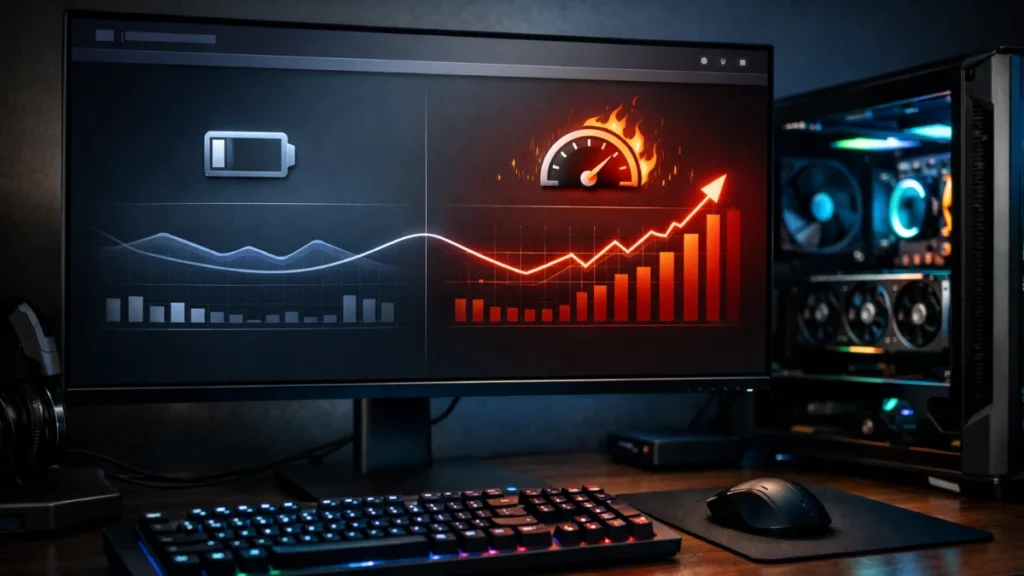
Power plans seem like they shouldn’t matter for desktop gaming PCs plugged into wall outlets. Yet Windows power settings directly control how your CPU behaves, how aggressively components enter power-saving states, and whether your hardware delivers consistent performance or fluctuates based on perceived demand. After chasing down mysterious stuttering issues on multiple builds, I’ve learned that power plan configuration can mean the difference between buttery-smooth gameplay and inexplicable micro-stutters.
The default “Balanced” power plan prioritizes energy efficiency, reasonable for laptops but counterproductive for gaming desktops. Understanding what power plans actually control and how to configure them properly eliminates an entire category of performance inconsistency.
Understanding Windows power plans
Power plans are collections of settings controlling hardware power states, performance scaling, and energy management. Windows includes several built-in plans with different priorities.
Balanced (default): Dynamically adjusts CPU frequency based on load, allows components to enter power-saving states during idle periods, and prioritizes energy efficiency while maintaining reasonable performance. This plan causes issues for gaming because frequency transitions aren’t instantaneous, your CPU might be running at reduced speed when a sudden load spike occurs.
High Performance: Keeps CPU at higher frequencies more consistently, reduces aggressive power saving, and prioritizes performance over efficiency. Better for gaming but still allows some power management features.
Power Saver: Aggressively limits performance to minimize energy consumption. Never use this for gaming, it dramatically reduces performance.
Ultimate Performance: A hidden plan that eliminates virtually all power-saving features. Designed for workstations but excellent for gaming desktops. Keeps hardware at full readiness constantly.
The problem with Balanced for gaming
Balanced mode’s CPU frequency scaling creates measurable issues in gaming scenarios.
Frequency transition delays: When your game suddenly demands CPU power: entering combat, loading new areas, physics calculations, the CPU must ramp up from its idle frequency. This transition takes milliseconds, but those milliseconds appear as frame time spikes. In my testing, these spikes were visible in frame time graphs as regular small stutters during gameplay state changes.
Core parking behavior: Balanced mode parks unused CPU cores to save power. When games suddenly need those cores, waking them introduces latency. Modern games increasingly utilize multiple cores, making this parking behavior problematic.
PCI Express power management: Balanced mode allows PCIe devices (including your GPU) to enter lower power states. Transitioning back to full power when gaming load increases can cause brief stutters.
USB selective suspend: This feature suspends USB devices not actively in use. Your mouse or keyboard might experience momentary input lag when Windows wakes them from suspended state.
Switching to High Performance
For most gaming desktops, High Performance provides the right balance of consistent performance without completely eliminating power management.
Accessing power plans: Open Control Panel > Hardware and Sound > Power Options. Alternatively, right-click the battery icon in the system tray and select Power Options, or search “power plan” in the Start menu.
Selecting High Performance: If High Performance isn’t visible, click “Show additional plans” to reveal it. Select High Performance as your active plan. This single change eliminates most power-related gaming stutters.
Verifying the change: Your selected plan should show as active. Some system updates or driver installations can reset power plans to Balanced, verify periodically that your preferred plan remains active.
Enabling Ultimate Performance
Ultimate Performance takes High Performance further, eliminating remaining power-saving features for maximum consistency.
Unhiding Ultimate Performance: This plan is hidden by default on most systems. Enable it by opening PowerShell as administrator and running:
powercfg -duplicatescheme e9a42b02-d5df-448d-aa00-03f14749eb61
After running this command, Ultimate Performance appears in your power plan options.
When Ultimate Performance helps: The difference between High Performance and Ultimate Performance is subtle on most systems. Ultimate Performance provides measurable benefit for:
- Competitive gaming where every millisecond matters
- Systems experiencing micro-stutters even on High Performance
- Workloads with highly variable CPU demands
- Users who never need power-saving features
Power consumption consideration: Ultimate Performance keeps all hardware at full readiness constantly, increasing idle power consumption. For desktop gaming systems, this typically means 10-30 watts higher idle power draw, negligible for most users but worth noting.
Customizing power plan settings
Both High Performance and Ultimate Performance can be further customized for gaming-specific needs.
Accessing advanced settings: In Power Options, click “Change plan settings” next to your active plan, then “Change advanced power settings.” This opens detailed configuration options.
Critical settings to verify:
Processor power management:
- Minimum processor state: 100% (prevents CPU from downclocking)
- Maximum processor state: 100% (allows full turbo)
- System cooling policy: Active (prioritizes cooling over throttling)
PCI Express:
- Link State Power Management: Off (prevents GPU power state transitions)
USB settings:
- USB selective suspend: Disabled (prevents input device sleep)
Hard disk:
- Turn off hard disk after: Never (0 minutes) if using HDD for games
Display:
- Turn off display after: Set to your preference (doesn’t affect gaming performance)
For all Windows performance settings, check our main Windows gaming optimization guide.
AMD and Intel-specific considerations
CPU manufacturers include their own power management technologies that interact with Windows power plans.
AMD Ryzen systems:
AMD’s Precision Boost and related technologies work alongside Windows power plans. For Ryzen systems:
- Use the “AMD Ryzen High Performance” or “AMD Ryzen Balanced” plans if installed by chipset drivers, these are optimized for Ryzen’s boost behavior
- If these plans aren’t available, standard High Performance works well
- Ensure chipset drivers are current, as they include power management optimizations
Intel systems:
Intel’s Speed Shift and Turbo Boost interact with Windows power settings:
- High Performance or Ultimate Performance plans work well with Intel CPUs
- Intel’s frequency transitions are typically fast enough that Balanced causes fewer issues than on some AMD systems
- Still recommend High Performance for gaming to eliminate any transition-related stuttering
Creating a custom gaming power plan
For maximum control, create a dedicated gaming power plan with exactly the settings you want.
Creating the plan: In Power Options, click “Create a power plan” in the left sidebar. Base it on High Performance, name it something like “Gaming Performance,” and customize the settings.
Recommended custom settings:
- Minimum processor state: 100%
- Maximum processor state: 100%
- System cooling policy: Active
- Link State Power Management: Off
- USB selective suspend: Disabled
- Hard disk turn off: Never
- Wireless adapter power saving: Maximum Performance
- PCI Express Link State: Off
Switching between plans: Create shortcuts to switch power plans easily. For gaming plan activation, create a shortcut with:
powercfg /setactive [GUID]
Find your plan’s GUID by running powercfg /list in Command Prompt. This enables quick switching between gaming and normal usage power plans.
Laptop gaming considerations
Laptop users face additional power plan complexity due to battery versus plugged-in states.
Plugged-in gaming: When gaming on a laptop while plugged in, use High Performance. Most gaming laptops automatically switch to performance modes when connected to power.
Manufacturer software: Gaming laptops often include manufacturer power management software (Armoury Crate, Dragon Center, Vantage, etc.) that overrides Windows power plans. Configure performance modes in this software rather than solely relying on Windows power plans.
Thermal considerations: Laptops have limited cooling capacity. Ultimate Performance may cause thermal throttling that actually reduces performance. High Performance with manufacturer software in “Performance” mode typically provides optimal laptop gaming.
Battery gaming: If you must game on battery, accept that performance will be limited. Use Balanced mode to extend battery life while maintaining playable performance. Competitive gaming on battery isn’t realistic for most laptops.
Verifying power plan effectiveness
After configuring power plans, verify they’re working as intended.
CPU frequency monitoring: Use HWiNFO64 or CPU-Z to monitor CPU frequencies during gaming. With proper power plan configuration, your CPU should maintain high frequencies consistently rather than frequently dropping to low states.
Frame time analysis: Use tools like CapFrameX or MSI Afterburner’s frame time graph to check for micro-stutters. Power-related stutters typically appear as regular small spikes in frame time graphs. After switching to High Performance or Ultimate Performance, these spikes should reduce or disappear.
Before and after benchmarking: Run the same benchmark or game sequence before and after power plan changes. Compare not just average FPS but also 1% and 0.1% low framerates, these metrics reveal the consistency improvements power plan optimization provides.
Temperature monitoring: Ensure your cooling solution handles the increased heat from keeping hardware at higher performance states. Monitor temperatures during gaming to confirm you’re not introducing thermal throttling by eliminating power-based throttling.
Power plan optimization is one of the highest-impact, lowest-effort Windows gaming optimizations available. A few clicks to switch from Balanced to High Performance can eliminate stuttering that no amount of graphics settings adjustment would fix. Start with High Performance, test your games, and escalate to Ultimate Performance if you need even more consistency.