Broadcasting gameplay to Twitch, YouTube, or any streaming platform requires more than clicking “Go Live.” The configuration decisions you make, from encoder selection to audio routing, determine whether viewers experience crisp, smooth video or a pixelated, stuttering mess. After three years of refining my own streaming setup and helping dozens of fellow streamers in Austin’s gaming community troubleshoot theirs, I’ve learned which optimizations genuinely matter.
This guide covers every essential aspect of streaming configuration. Whether you’re setting up your first stream or optimizing an existing setup for better performance, you’ll find actionable guidance for building a professional broadcast that doesn’t compromise your gaming experience.
Getting started with streaming software
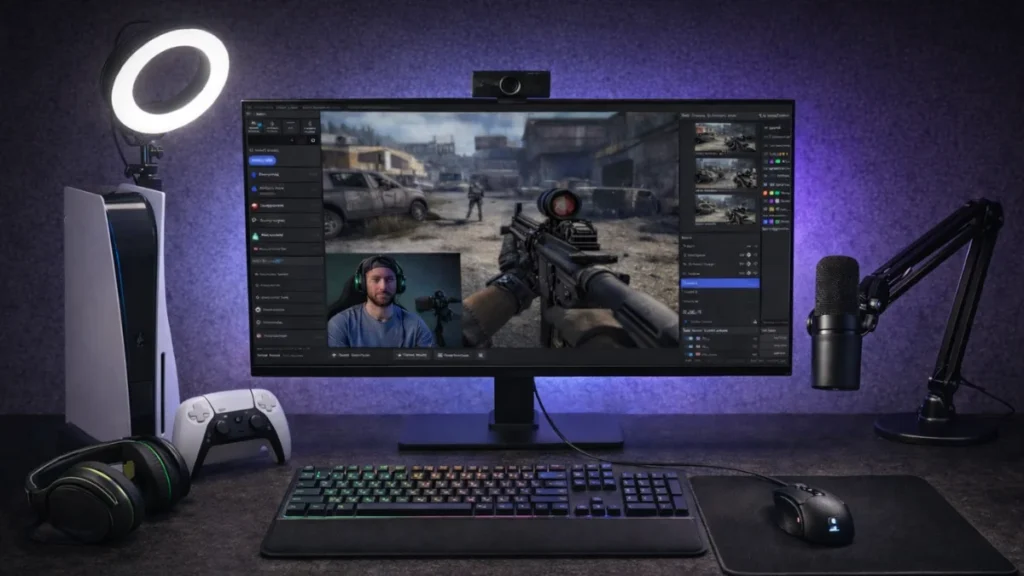
Every streaming journey begins with software selection. The application you choose becomes your production hub, capturing gameplay, compositing scenes, mixing audio, and encoding video for broadcast. Making the right choice early prevents frustrating migrations later.
OBS Studio remains the gold standard for streaming software. It’s free, open-source, and receives continuous development from a dedicated community. The learning curve exists, but the payoff is complete control over every aspect of your broadcast. Professional streamers and hobbyists alike trust OBS for its stability, efficiency, and extensive plugin ecosystem.
Alternatives exist for streamers seeking different tradeoffs. Streamlabs Desktop wraps OBS’s core engine in a more approachable interface with integrated alerts, themes, and widgets. The convenience comes at the cost of higher resource usage, a meaningful consideration for streamers on mid-range hardware. Understanding when each option makes sense helps you choose appropriately for your specific situation.
Beyond software selection, initial configuration establishes your streaming foundation. Scene organization, source management, and basic settings require attention before your first broadcast. Rushing through setup creates problems that compound over time, while methodical configuration produces a stable platform for growth.
The interface may seem overwhelming at first glance. Multiple panels, unfamiliar terminology, and dozens of settings create initial confusion. Breaking the setup process into logical steps (scenes, sources, audio, output) transforms that complexity into manageable tasks.
Understanding video encoding
Encoding transforms your raw gameplay footage into compressed video suitable for internet transmission. This process happens in real-time as you stream, and the encoder you choose directly impacts both stream quality and system performance. Understanding encoding options prevents frustrating troubleshooting later.
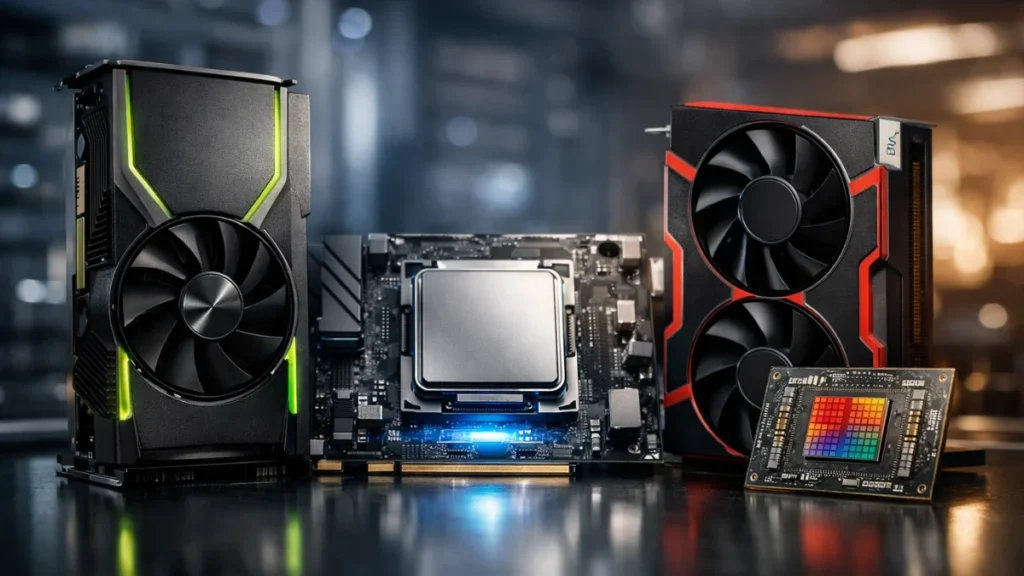
Two fundamental approaches exist: hardware encoding and software encoding. Hardware encoding uses dedicated circuitry built into your graphics card or processor: NVIDIA’s NVENC, Intel’s QuickSync, or AMD’s VCE. These encoders operate on separate silicon from your gaming cores, meaning streaming adds minimal performance overhead. Modern hardware encoders produce quality rivaling software solutions at typical streaming bitrates.
Software encoding through x264 uses your CPU to compress video. The approach offers quality advantages at the cost of significant CPU utilization. Each encoding preset” from ultrafast to veryslow” trades processing power for compression efficiency. Slower presets produce better quality but demand more CPU resources, potentially impacting game performance on single PC setups.
Your hardware determines which encoding path makes sense. NVIDIA RTX owners should almost always use NVENC, the quality matches x264 medium preset without touching gaming performance. AMD and Intel users have capable hardware encoders that serve most streaming needs. Software encoding remains relevant for dual PC setups where a dedicated machine handles encoding, allowing aggressive quality presets impossible on gaming systems.
Encoder configuration extends beyond simply selecting hardware or software. Settings like bitrate control, B-frames, and lookahead affect quality and latency in ways worth understanding.
Bitrate and quality settings
Bitrate determines how much data your stream sends per second, directly affecting visual quality. Higher bitrate preserves more detail in each frame, while insufficient bitrate creates compression artifacts, those blocky, smeared visuals that plague poorly configured streams. Finding the right bitrate involves balancing quality aspirations against platform limits and bandwidth constraints.
Streaming platforms impose maximum bitrate caps that vary by service and partnership status. Twitch limits non-partnered streamers to 6000 Kbps, while YouTube allows significantly higher rates. Exceeding these limits wastes upload bandwidth without improving viewer experience. Understanding your platform’s requirements prevents configuration mistakes that cause rejection or quality degradation.
Your upload speed establishes another ceiling. Reliable streaming requires sustained bandwidth significantly exceeding your target bitrate, network fluctuations and household internet usage compete for capacity. Testing upload stability under real conditions reveals whether your connection supports your quality ambitions. Many streamers discover their actual sustainable bitrate falls below theoretical maximums.
Content type influences optimal bitrate allocation. Fast-paced shooters with constant motion demand higher bitrate than slow strategy games or static talk streams. The same 4500 Kbps that produces excellent Civilization streams creates muddy, artifact-laden Apex Legends broadcasts. Matching bitrate to content complexity extracts maximum quality from available bandwidth.
Resolution and framerate compound bitrate requirements. Streaming 1080p60 at 4000 Kbps produces worse results than 720p60 at the same bitrate, you’re spreading insufficient data across too many pixels and frames.
Resolution and framerate configuration
Resolution and framerate define the visual foundation of your stream. These settings determine how sharp your broadcast appears and how smoothly motion renders for viewers. Choosing appropriate values requires understanding how they interact with bitrate, encoder capabilities, and viewer expectations.
The streaming standard has settled around 1080p60 for gaming content. This resolution displays well across devices while 60 frames per second delivers smooth motion essential for fast-paced gameplay. However, achieving quality results at these specifications demands adequate bitrate, starving 1080p60 of data produces worse results than properly configured 720p60.
Downscaling from higher resolutions improves stream quality in ways many streamers overlook. Gaming at 1440p while outputting 1080p to your stream leverages extra rendered detail through intelligent scaling algorithms. The mathematical combination of multiple source pixels into each output pixel creates sharper results than native 1080p capture. Understanding downscale filter options helps extract maximum benefit from this technique.
Framerate choices involve content-specific tradeoffs. Gaming streams benefit enormously from 60fps, the motion smoothness difference compared to 30fps is immediately apparent during fast gameplay. However, talk streams, creative content, and low-motion broadcasts gain nothing from doubled framerate while consuming twice the bitrate per frame. Matching framerate to content type optimizes quality within bandwidth constraints.
Canvas and output resolution settings in OBS serve different purposes that warrant understanding before configuration.
Audio setup for streaming
Audio quality separates amateur streams from professional broadcasts more decisively than video quality. Viewers tolerate compression artifacts and occasional frame drops, but they abandon streams with distorted microphones, unbalanced levels, or overwhelming game audio. Investing time in proper audio configuration pays dividends in viewer retention.
Multiple audio sources compete for attention in every stream. Your microphone captures commentary, desktop audio carries game sound effects and music, and additional sources might include Discord, alerts, or background music players. Each source requires individual level adjustment before combining into a coherent mix that serves viewers rather than overwhelming them.
The fundamental principle: your voice takes priority. Game audio and music exist to support your commentary, not compete with it. Setting appropriate baseline levels(microphone peaking around -10dB, game audio sitting lower around -18dB, music barely audible in the background) creates a mix where viewers hear everything clearly without constant volume adjustment.
Microphone processing transforms raw input into broadcast-ready audio. Noise suppression eliminates background sounds like keyboard clicks and air conditioning. Noise gates cut audio during silence, preventing ambient noise between speech. Compression evens out volume variations, ensuring quiet comments and excited reactions reach viewers at consistent levels. Properly configured filter chains make modest microphones sound professional.
Dynamic range in games creates mixing challenges, quiet exploration followed by explosive combat can spike audio unexpectedly without proper management.
Capture cards and video routing
Capture cards bridge the gap between video sources and your streaming software. When you need to stream console gameplay, receive video from a second computer, or capture HDMI output from cameras and other devices, a capture card converts that signal into something OBS can use. Understanding capture card functionality expands your streaming capabilities beyond PC game capture.
The technology serves straightforward purposes despite seeming complex initially. Your PlayStation, Xbox, or Nintendo Switch outputs video through HDMI. A capture card receives that HDMI signal and presents it to your computer as a video input device, similar to how OBS sees a webcam. Your streaming software captures this feed like any other source.
Passthrough functionality proves essential for gaming applications. Quality capture cards include an HDMI output that sends your video signal onward to a monitor or TV. You play on this passthrough display with zero added latency while the capture card simultaneously feeds your streaming PC. Without passthrough, you’d game in a tiny OBS preview window with noticeable delay, completely unplayable for anything requiring reaction time.
External capture cards connect via USB and offer portability. Internal cards install in PCIe slots and typically provide lower latency for permanent setups. Resolution and refresh rate capabilities vary significantly between models, ensuring your capture card supports your gaming setup’s output prevents frustrating compatibility issues.
Console-specific configuration, particularly HDCP settings, requires attention before capture cards function properly with certain devices.
Dual PC streaming configurations
Dedicated streaming setups separate gaming and broadcasting onto distinct machines. Your gaming PC runs games at maximum performance without streaming overhead while a second computer handles encoding, OBS, overlays, and chat management. This configuration eliminates the compromises inherent in single PC streaming, delivering both optimal gaming performance and maximum stream quality simultaneously.
The architecture makes intuitive sense once understood. Your gaming PC focuses entirely on rendering frames, no encoder competing for resources, no browser sources consuming memory, no background streaming processes affecting frame times. Everything that machine does serves your gameplay experience.
Meanwhile, your streaming PC receives video from the gaming machine through a capture card or network connection. This dedicated encoder runs whatever quality settings you desire without impacting gaming performance. Professional streamers commonly use x264 slow preset on streaming PCs, quality levels impossible on single PC setups because the encoding machine does nothing except encode.
Hardware requirements differ substantially between the two machines. Your gaming PC needs gaming-appropriate specifications without encoding considerations. Your streaming PC needs encoding capability, either a CPU with cores for x264 or a GPU with hardware encoding, but modest specifications otherwise suffice since it never runs games.
Audio routing between systems creates the primary configuration complexity. Game audio originates on your gaming PC but must reach OBS on your streaming PC. Several approaches exist, from capture card audio to dedicated mixing hardware, each with distinct tradeoffs.
Single PC streaming performance
Most streamers broadcast from a single computer, and modern hardware handles this workload remarkably well. The performance penalties that plagued single PC streaming years ago have largely disappeared with current CPUs, GPUs, and encoding technologies. Understanding how to optimize your system ensures streaming doesn’t compromise your gaming experience.
Hardware encoding revolutionized single PC streaming viability. NVENC on NVIDIA cards uses dedicated silicon completely separate from gaming cores, streaming adds approximately 1-2% performance overhead in real-world testing. AMD and Intel hardware encoders provide similar benefits. This near-zero impact means most streamers can broadcast without meaningful framerate loss.
OBS itself consumes system resources beyond encoding. Browser sources for alerts and overlays, preview rendering, and general application overhead all compete with your game for CPU and GPU cycles. Optimizing OBS configuration” disabling preview during gameplay, simplifying browser sources, managing scene complexity” preserves resources for gaming without sacrificing production quality.
System-wide optimization extends beyond OBS settings. Windows configuration, background processes, and proper driver management all affect streaming performance. Small inefficiencies compound into noticeable impact when your system runs both demanding games and streaming software simultaneously.
Game settings may require modest adjustment for optimal streaming stability. Maintaining some GPU headroom rather than running at constant maximum utilization improves encoder consistency even with hardware encoding’s dedicated silicon.
Balancing quality and performance
Every streaming configuration involves tradeoffs between what viewers experience and what you experience while gaming. Pushing stream quality higher can impact gaming performance; prioritizing framerates might compromise visual quality for your audience. Finding your personal balance point requires understanding which adjustments matter most on each side of this equation.
The tradeoff manifests differently depending on your encoding method and hardware capabilities. Hardware encoding creates minimal direct conflict, NVENC operates on dedicated silicon, so stream quality settings don’t directly reduce gaming performance. Software encoding creates explicit resource competition where every CPU cycle spent encoding is unavailable for your game. Your hardware determines which tradeoffs you actually face versus which represent free choices.
Viewer perception helps prioritize stream quality investments. Not all improvements matter equally: framerate affects gaming content more than resolution, audio quality often matters more than video quality and bitrate improvements show diminishing returns beyond certain thresholds. Understanding what viewers actually notice prevents wasting resources on imperceptible gains while neglecting improvements that genuinely enhance their experience.
Content type influences optimal balance points. Competitive gaming demands maximum performance preservation even at modest quality cost. Casual content allows more overhead for production value. Variety streamers face changing requirements across different games, making flexible configurations valuable.
Multiple OBS profiles optimized for different scenarios simplify balance decisions, switch profiles based on content rather than constantly adjusting individual settings.
Advanced streaming technologies
Beyond traditional capture methods and encoding configurations, advanced technologies expand streaming capabilities in ways that weren’t accessible to typical streamers just a few years ago. These tools solve specific problems and enable workflows that would otherwise require expensive professional equipment.
NDI Network Device Interface, transforms your local network into a video routing system. Rather than running HDMI cables between computers, NDI transmits full-quality video over standard ethernet connections. Your gaming PC broadcasts its screen onto the network, and your streaming PC receives that feed through OBS without capture cards or physical video cables. The technology originally served broadcast professionals but has become increasingly accessible for home streaming setups.
NDI requires robust network infrastructure to perform well. Gigabit wired ethernet between sending and receiving computers proves essentially mandatory, wireless connections introduce latency and quality problems that undermine NDI’s advantages. When properly configured over adequate networking, NDI delivers quality comparable to capture cards with flexibility benefits that sometimes prove more valuable.
Virtual camera functionality extends OBS beyond streaming platforms. The feature presents your entire OBS production as a webcam that any application can use: video calls, Discord, online event and platforms that expect camera input rather than stream broadcasts. Your professional streaming setup with proper lighting, overlays, and production quality becomes available anywhere webcam input is accepted.
Frequently asked questions
What’s the best encoder for streaming? For most streamers, NVENC on NVIDIA RTX cards provides the best combination of quality and performance. It produces excellent results at streaming bitrates while adding virtually no gaming performance overhead. AMD and Intel hardware encoders also work well. Software encoding (x264) only makes sense for dual PC setups or very powerful CPUs streaming undemanding games.
What bitrate should I use for streaming? For 1080p60 gaming content on Twitch, target 6000 Kbps, the platform maximum for non-partners. YouTube allows higher bitrates if your upload supports them. If bandwidth limits you below 4500 Kbps, consider dropping to 720p60 for better quality at lower resolution rather than starving 1080p of data.
Should I stream at 30fps or 60fps? Gaming content benefits significantly from 60fps, viewers immediately notice the motion smoothness difference. Reserve 30fps for talk streams, creative content, or situations where bandwidth constraints force the choice. Most gaming streamers should prioritize 60fps.
Do I need a capture card to stream? Not for PC gaming. OBS captures PC games directly through game capture or display capture. Capture cards become necessary for streaming console gameplay (PlayStation, Xbox, Nintendo Switch) or for dual PC streaming setups where video must transfer between computers.
How much does streaming affect gaming performance? With NVENC hardware encoding, expect approximately 1-2% performance loss, essentially imperceptible during gameplay. AMD hardware encoding costs slightly more, around 2-5%. Software encoding (x264) impacts performance significantly, ranging from 10-50% depending on preset, making it unsuitable for most single PC setups.
Can I stream and record simultaneously? Yes. OBS supports simultaneous streaming and recording with independent quality settings. You can stream at 6000 Kbps while recording at higher bitrate for YouTube uploads. The additional overhead is minimal with hardware encoding.
What upload speed do I need for streaming? Your upload should exceed your target bitrate by at least 50% to account for fluctuations and household usage. For 6000 Kbps streaming, aim for 10+ Mbps stable upload minimum. Test upload consistency under real conditions rather than relying on speed test peaks.
Streaming setup involves numerous decisions that collectively determine your broadcast quality and gaming experience. From encoder selection to audio mixing, each configuration choice contributes to the final product your viewers experience. The investment in proper setup pays dividends through better stream quality, stable performance, and fewer technical issues during broadcasts.
Start with the fundamentals, reliable encoding, appropriate bitrate and clean audio, before pursuing advanced configurations. Test your settings thoroughly before important streams, and don’t hesitate to revisit configurations as your hardware, content, or goals evolve.