Windows Update can restart your PC mid-match, replace your GPU drivers without asking, and tank your FPS after forced updates. Here’s how to take control of Windows updates without compromising security. So you game on your schedule, not Microsoft’s.
Nothing kills a competitive match faster than Windows deciding it’s time to restart. I lost a ranked Valorant game last year because Windows rebooted during overtime, no warning, no mercy. After that, I spent hours configuring Windows Update properly. Now my system updates when I choose, my GPU drivers stay stable, and I haven’t had an unwanted restart in over a year.
This guide covers the exact settings I use to control Windows Update on my gaming PC. You’ll learn how to pause updates during gaming sessions, prevent automatic driver replacements, and schedule updates for times you’re not playing. For complete Windows optimization including background processes and power settings, see the comprehensive Windows gaming optimization guide. For Windows 11-specific settings that updates can affect, see the Windows 11 gaming optimization guide.
Quick fixes to stop Windows Update from interrupting gaming
Need immediate protection? Change these four settings right now:
- Set Active Hours: Settings → Windows Update → Advanced options → Active hours. Set your gaming hours (example: 6 PM to 2 AM). Windows won’t restart during this window.
- Pause updates: Settings → Windows Update → Pause for 1 week. Do this before important gaming sessions. Extends up to 5 weeks.
- Block automatic driver updates: Settings → System → About → Advanced system settings → Hardware → Device Installation Settings → Select “No.” Prevents Windows from replacing your GPU drivers.
- Enable metered connection: Settings → Network & internet → Your connection → Toggle “Metered connection” on. Stops background update downloads that cause lag.
These four changes prevent 90% of Windows Update gaming problems. Takes five minutes. The detailed sections below explain each setting and cover advanced options.
Why Windows Update causes FPS drops and gaming interruptions
Windows Update creates specific problems that general PC users never notice, but gamers feel immediately.
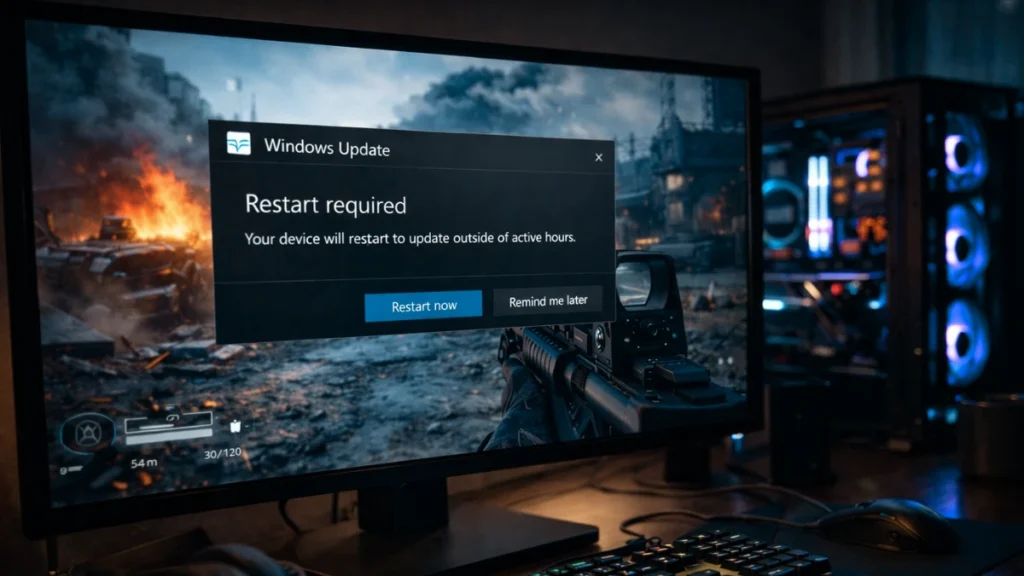
Forced restarts during gameplay. Windows schedules automatic restarts after installing updates. If you’re mid-match when that timer hits, your game closes without warning. I’ve watched friends lose ranked progress, raid loot, and tournament matches to unexpected restarts.
FPS drops after updates. Major Windows updates frequently reset system settings. Your power plan reverts to Balanced. Game Mode gets disabled, and HAGS can reset silently. Background services you disabled get re-enabled. Each change chips away at the performance you carefully optimized.
Windows replacing your GPU drivers. This one drove me crazy until I figured it out. Windows Update sometimes replaces your manually installed NVIDIA or AMD drivers with older Windows-certified versions. Suddenly DLSS doesn’t work, Anti-Lag disappears, or FPS drops 20% for no apparent reason. I troubleshot a friend’s “broken” RTX 4070 for an hour before discovering Windows had silently swapped his Game Ready driver.
Background downloads causing lag. Windows downloads updates silently in the background, consuming bandwidth and disk I/O. In online games, this creates ping spikes and packet loss. On systems with slower storage, asset loading stutters because Windows is writing update files. Beyond Windows Update itself, other background processes cause similar lag, the background processes optimization guide identifies all services competing with your games.
The core problems gamers search for:
- Windows restarting during gaming without warning
- FPS drops after Windows Update installed
- GPU driver replaced by Windows Update
- Lag spikes from background update downloads
- Game settings reset after Windows Update
These are the exact issues this guide solves. Understanding them helps you target the right fixes rather than blindly disabling everything, which creates security risks.
How to set Active Hours to protect gaming time
Active Hours tells Windows when you’re using your PC, preventing restarts during those periods.
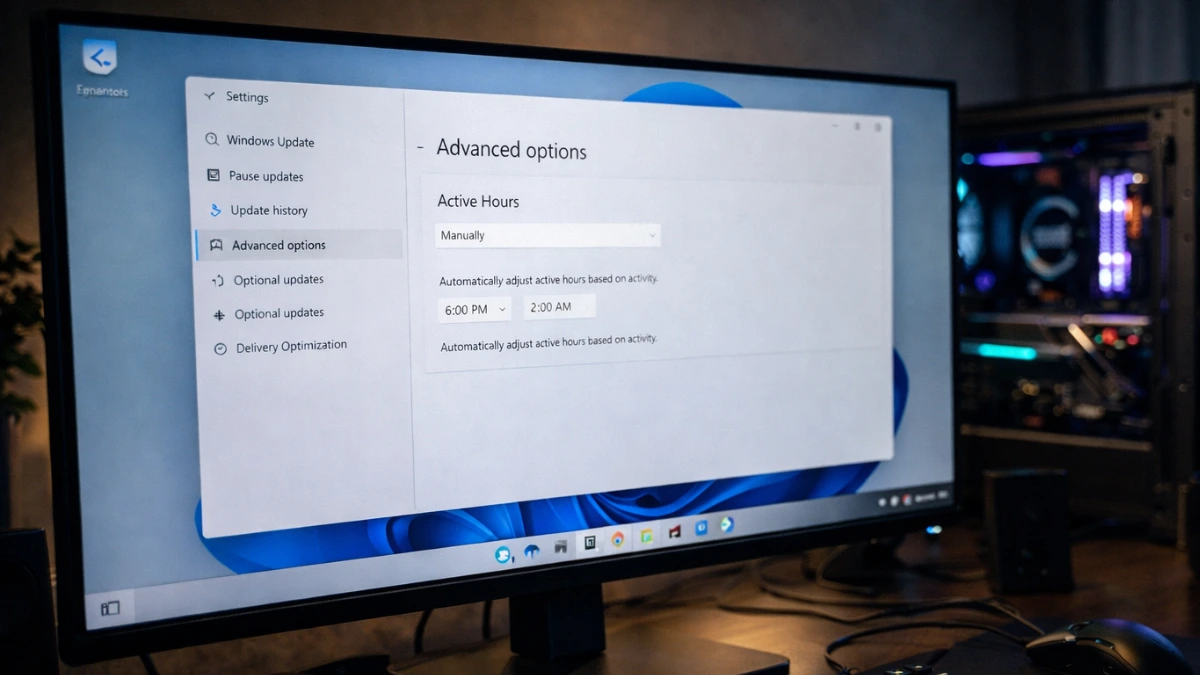
To configure Active Hours:
- Open Settings → Windows Update
- Click Advanced options
- Select Active hours
- Choose “Manually” from the dropdown
- Set your typical gaming hours (example: 6 PM to 2 AM)
Windows won’t restart for updates during Active Hours. The limitation: you can only set an 18-hour window. If you game at irregular times, combine this with other methods below.
My setup: I set Active Hours from 10 AM to 4 AM, covering my evening and late-night gaming sessions. Windows updates install during my morning work hours when I’m not gaming.
How to pause Windows updates before gaming sessions
Pausing updates provides guaranteed protection for important gaming sessions: tournaments, raid nights, or ranked climbs.
To pause updates:
- Open Settings → Windows Update
- Click “Pause for 1 week”
- Extend up to 5 weeks if needed
When to use this: Before any gaming session where interruption would be costly. I pause updates every Friday evening and resume Monday morning. This protects my weekend gaming without leaving the system permanently outdated.
Don’t forget to resume. Paused updates eventually force-install. Microsoft limits pause duration to prevent security vulnerabilities from accumulating. Use pausing strategically, not permanently.
How to stop Windows from replacing your GPU drivers
This solves one of the most frustrating Windows Update behaviors, automatic GPU driver replacement that causes FPS drops and broken features.
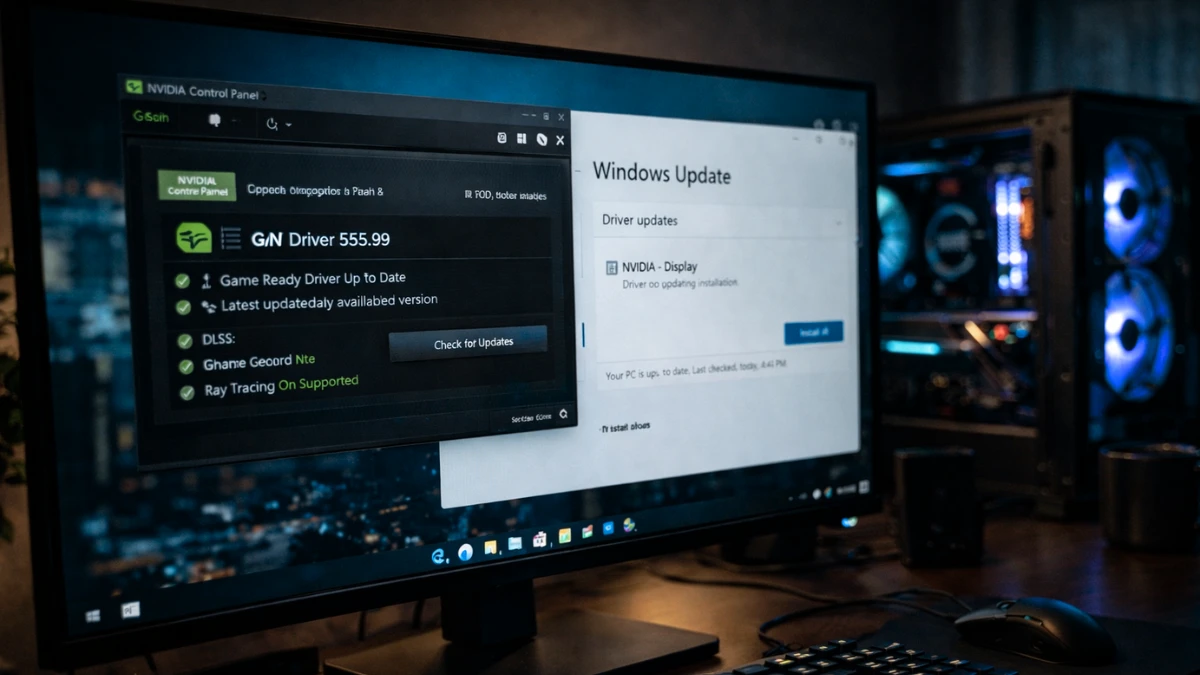
To disable automatic driver updates:
- Open Settings → System → About
- Click “Advanced system settings”
- Select the Hardware tab
- Click “Device Installation Settings”
- Select “No (your device might not work as expected)”
- Click Save Changes
What this does: Prevents Windows Update from automatically installing drivers for any hardware, including your GPU. You maintain full control over driver versions.
Important: After changing this setting, manually manage your GPU drivers through GeForce Experience or AMD Radeon Software.
I’ve used this setting for three years without issues. My GPU drivers only change when I deliberately update them, which means I can wait for community feedback before installing new Game Ready drivers that might cause problems.
How to use metered connection to block update downloads
Metered connection mode prevents Windows from downloading updates in the background, eliminating the bandwidth and disk I/O competition that causes lag during gaming.
To enable metered connection:
- Open Settings → Network & internet
- Click your connection (WiFi or Ethernet)
- Toggle “Metered connection” on
What this blocks:
- Automatic update downloads
- Large app updates from Microsoft Store
- Some telemetry data transmission
What still works:
- Critical security updates (in most cases)
- Your games and applications
- Normal internet usage
The tradeoff: You’ll need to manually check for updates periodically. I disable metered connection once weekly to let updates download, then re-enable it for gaming.
How to schedule Windows Update for non-gaming hours
Rather than fighting updates, schedule them for times you’re definitely not gaming.
To schedule update installation:
- Open Settings → Windows Update
- Check for updates manually
- When updates are ready, click “Schedule restart”
- Choose a specific time (example: 5 AM)
My routine: I check for updates Sunday morning, schedule installation for Monday at 4 AM, and verify my system is stable Monday evening before gaming. This keeps my PC updated without risking gaming sessions.
When you should NOT disable Windows updates
Completely disabling Windows Update creates security risks that outweigh gaming convenience.
Security updates matter. Windows patches fix vulnerabilities that malware exploits. Running an unpatched system exposes you to ransomware, data theft, and compromised accounts, including your gaming accounts.
Game anti-cheat depends on Windows security. Some anti-cheat systems require recent Windows security updates. Falling too far behind can prevent you from playing competitive games entirely.
The right approach: Control update timing rather than disabling updates entirely. Every method in this guide lets Windows update, just on your schedule rather than mid-game.
I update my gaming PC weekly during a maintenance window. The system stays secure, drivers stay compatible, and I never experience unwanted restarts.
Recovering from a bad Windows Update
Sometimes updates cause problems despite your precautions. Here’s how to recover.
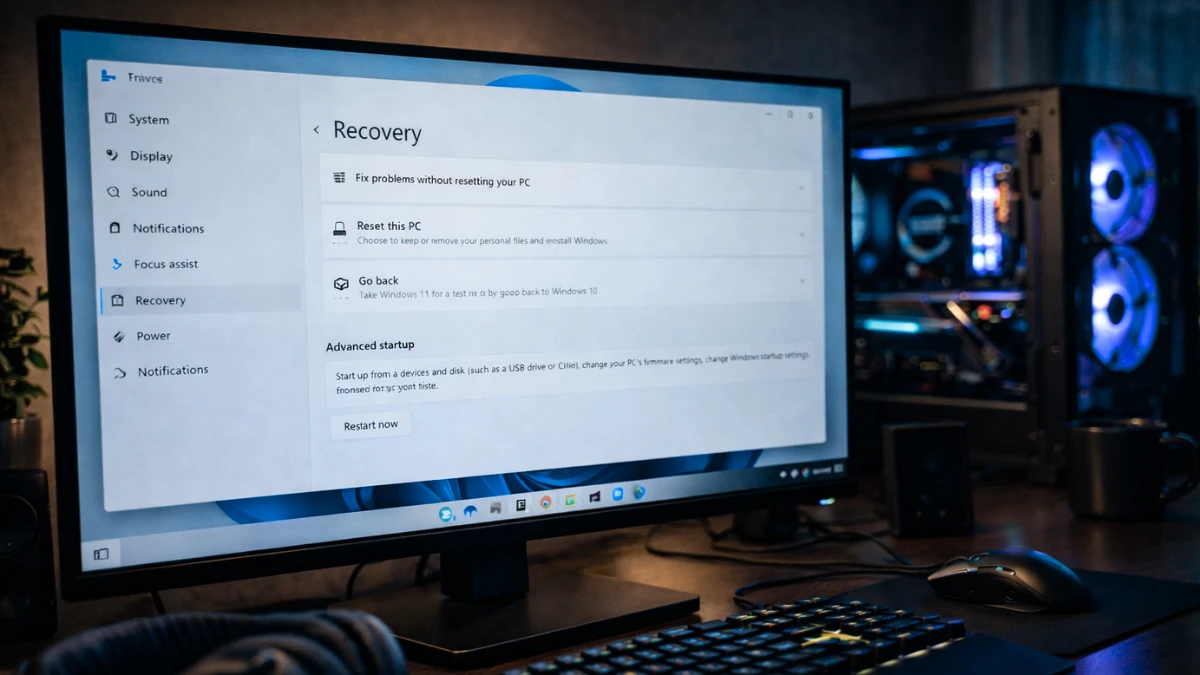
Post-update checklist, verify these settings:
- Power plan not reset to Balanced: see power plan guide
- Game Mode and HAGS still enabled: see Game Mode guide
- Background services still disabled
- Windows 11 features (VBS, memory integrity) unchanged
If Windows replaced your GPU driver:
- Download your preferred driver from NVIDIA or AMD
- Use DDU (Display Driver Uninstaller) in Safe Mode
- Install your chosen driver
- Disable automatic driver updates using the method above
To uninstall a problematic update:
- Open Settings → Windows Update → Update history
- Click “Uninstall updates”
- Find the recent update and uninstall
- Pause updates to prevent reinstallation
Frequently asked questions
Can Windows Update restart my PC without warning? Not if you configure Active Hours correctly. Windows respects Active Hours and won’t restart during those times. Set your gaming hours as Active Hours to prevent surprise restarts.
Why did my FPS drop after a Windows Update? Common causes: Windows replaced your GPU driver with an older version, reset your power plan to Balanced, re-enabled background services, or changed Game Mode settings. Check these settings after every major update.
How do I stop Windows from updating my GPU drivers? Settings → System → About → Advanced system settings → Hardware → Device Installation Settings → select “No.” This prevents automatic driver installation for all devices.
Will pausing updates make my PC less secure? Briefly pausing (1-2 weeks) creates minimal risk. Microsoft allows pausing specifically because short delays don’t significantly impact security. Don’t pause indefinitely.
Does metered connection affect gaming? No. Metered connection only affects Windows Update and some Microsoft services. Your games, voice chat, and streaming work normally.
Final thoughts
Windows Update doesn’t have to be an enemy of gaming. With proper configuration, updates install during your downtime while your gaming sessions remain protected.
My approach: Active Hours cover my gaming schedule, weekly pause protects weekends, and disabled automatic drivers prevent unwanted replacements. Updates install Monday mornings while I’m working. Zero interruptions, full security.
For complete Windows optimization including power settings, background processes, and performance tweaks, see the comprehensive Windows gaming optimization guide.