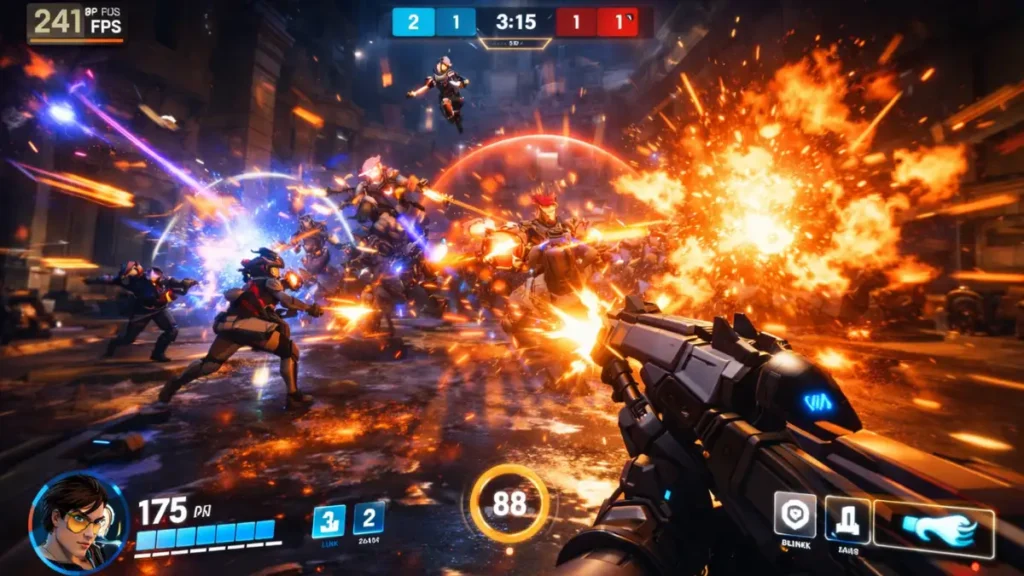
Overwatch 2 throws more visual chaos at players than almost any other competitive shooter. Ultimate abilities fill screens with particle effects, team fights involve twelve players using abilities simultaneously, and maps feature dynamic elements that stress even powerful hardware. Maintaining consistent framerates through this chaos separates players who can track targets cleanly from those fighting their hardware alongside opponents.
After optimizing Overwatch 2 across multiple hardware configurations and through numerous seasonal updates, I’ve identified settings that maintain competitive clarity without sacrificing the visual feedback needed to track abilities and enemies. The optimization approach differs significantly from arena shooters like Valorant or CS2. For those games, see the Valorant optimization guide and CS2 performance guide. Whether you’re a hitscan player needing crisp target tracking or a support maintaining awareness across chaotic team fights, these optimizations deliver the consistency competitive play demands.
Overwatch 2 performance characteristics
Understanding how Overwatch 2 stresses your system helps you optimize effectively.
Particle effect intensity: Overwatch 2’s abilities generate extensive particle effects: Pharah rockets, Moira orbs, Reinhardt fire strikes, and ultimate abilities all render complex effects simultaneously. Team fights with multiple ultimates represent worst-case performance scenarios that settings must accommodate.
Animation complexity: Hero models feature detailed animations that communicate gameplay information. Unlike some shooters where minimum model detail is optimal, Overwatch benefits from readable character animations that convey ability usage and movement intent.
Map variety: Maps range from open sightlines (Junkertown) to close-quarters chaos (King’s Row streets). Performance varies significantly between map types, and optimization must handle the most demanding scenarios.
Network model: Overwatch 2 uses favor-the-shooter netcode with server-side validation. Consistent framerates matter because frame timing affects when your client registers shots relative to server tick rate.
Platform balancing: As a cross-platform title, Overwatch 2’s settings accommodate console hardware. PC players can leverage additional headroom for higher framerates that provide competitive advantages in tracking and reaction time.
Optimal video settings configuration
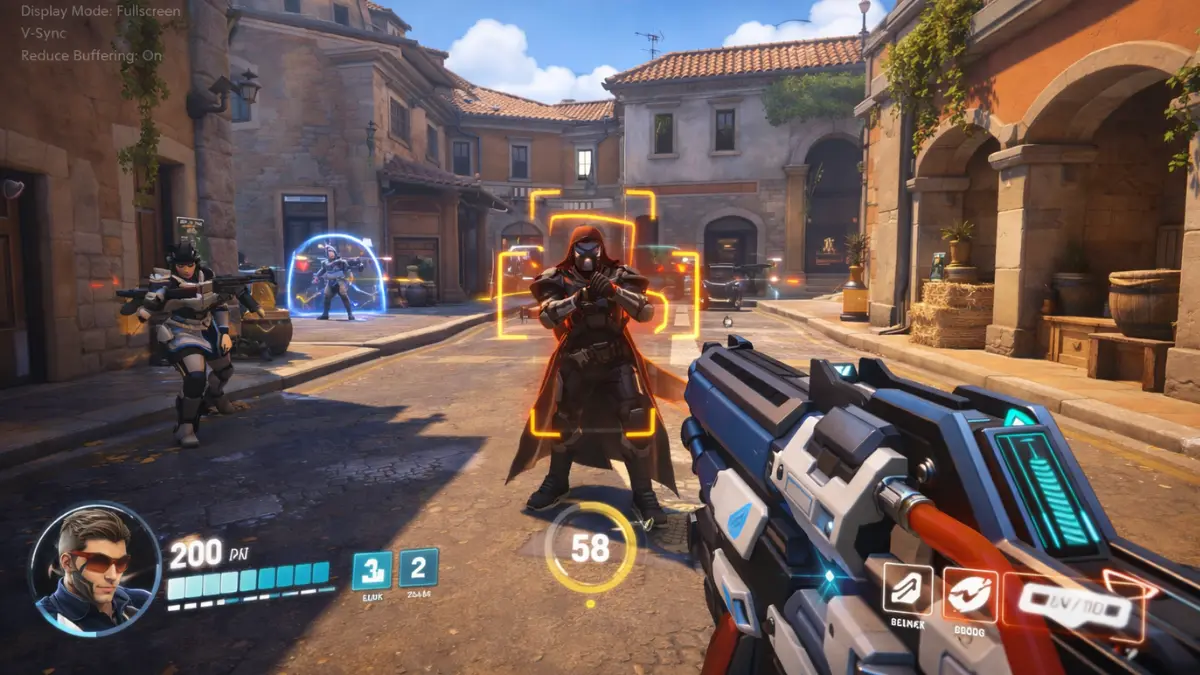
These settings balance performance with the visual clarity Overwatch’s gameplay requires.
Display Mode: Fullscreen. Lowest latency option, essential for competitive play. Avoid borderless windowed modes.
Target Display: Your primary gaming monitor if using multiple displays.
Resolution: Native 1080p for most competitive players. Higher resolutions significantly increase GPU load. 1440p is viable on high-end hardware, but 1080p remains optimal for maximum framerates.
Field of View: 103 (maximum). Higher FOV provides crucial peripheral awareness for tracking flankers and maintaining team fight awareness. The performance cost is negligible.
Aspect Ratio: 16:9 (or your monitor’s native). Stretched resolutions don’t provide meaningful advantages in Overwatch.
V-Sync: Off. Adds input lag unacceptable for competitive play.
Triple Buffering: Off. Additional frame buffering that increases latency.
Reduce Buffering: On. Critical setting that reduces input lag by minimizing frame queue. Always enable for competitive play.
NVIDIA Reflex: Three options available:
- Off: Reflex disabled entirely
- Enabled: Basic latency reduction
- Enabled + Boost: Prevents GPU clock ramping for lowest latency
Use Enabled + Boost for competitive play. My testing shows 15-20ms system latency improvement, substantial for a fast-paced game like Overwatch where milliseconds determine duels.
Limit FPS: Set to your monitor’s refresh rate or higher. Options include Display-Based (matches refresh rate) or Custom for specific targets. Higher framerates reduce input lag even on lower refresh displays.
Frame Rate Cap: Display-based or 300+ for high refresh rate monitors. Uncapped framerates provide the lowest input latency but may cause GPU heat buildup during menu screens.
DLSS and FSR upscaling
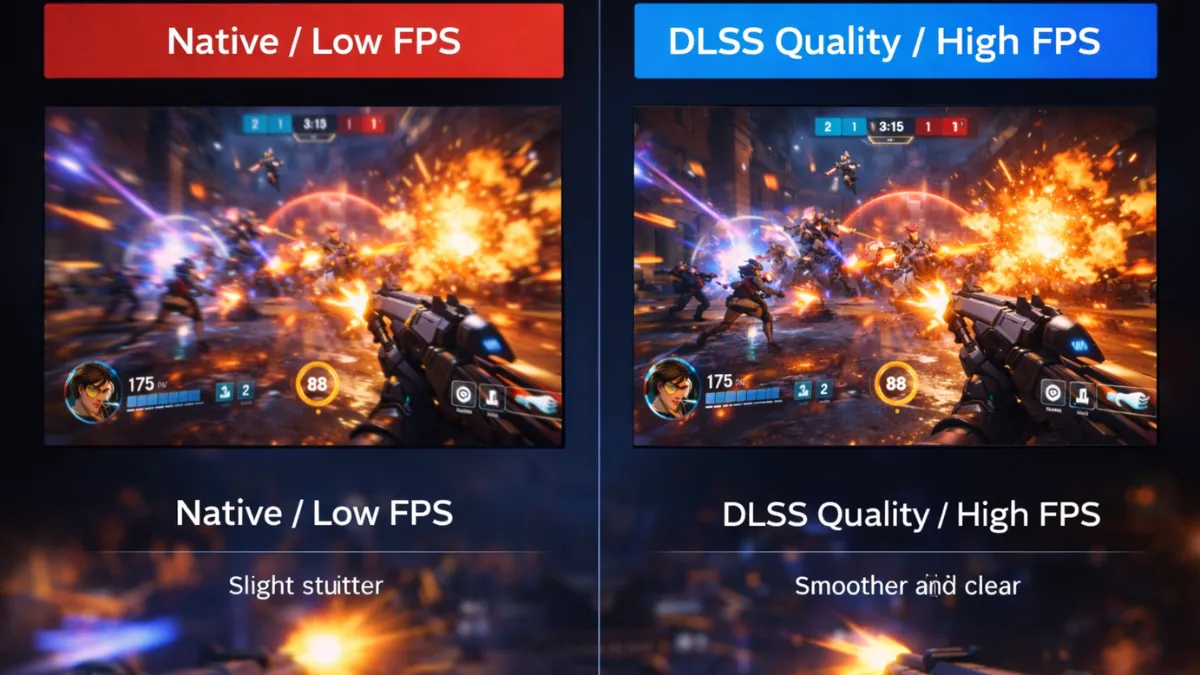
Overwatch 2 now supports both NVIDIA DLSS and AMD FSR, significant additions for performance optimization without sacrificing competitive visual clarity.
DLSS (NVIDIA RTX cards): Quality mode provides 15-25% FPS gains while maintaining sharp visuals for target tracking. DLSS handles upscaling more cleanly than reduced render scale, preserving the edge clarity needed to track enemy hitboxes. Balanced mode offers more performance but introduces slight blur that some players notice during fast tracking.
FSR (All GPUs): Quality mode works well for AMD users or older NVIDIA cards without RTX. FSR 2.0+ provides temporal upscaling similar to DLSS, though DLSS maintains a slight quality edge on equivalent settings. Avoid Performance mode, the blur noticeably affects tracking accuracy in a game where headshots matter.
Competitive recommendation: If you need more FPS, enable DLSS or FSR at Quality setting before lowering render scale or other graphics settings. Upscaling maintains sharper edges for target identification than reduced render scale. My testing shows DLSS Quality at 1080p output looks better than 85% render scale while providing similar performance gains.
When to skip upscaling: If you’re already hitting 240+ FPS stable at native resolution, upscaling adds unnecessary processing. Native rendering at high framerates provides the cleanest image for competitive play.
Graphics quality settings
Individual quality settings affect both performance and gameplay visibility.
Graphics Quality: Custom. Presets don’t optimize for competitive priorities.
Render Scale: 100% (or use DLSS/FSR). Lowering render scale blurs the image, making target tracking harder. If you need performance gains, enable DLSS or FSR at Quality setting instead, they maintain sharper visuals than reduced render scale. Only lower render scale below 100% as a last resort on hardware that doesn’t support modern upscaling.
Texture Quality: Medium or High. Textures help identify heroes and abilities. Low textures can make enemy recognition slower, particularly at distance. VRAM usage scales with texture quality, 8GB cards handle High textures comfortably in Overwatch 2.
Texture Filtering Quality: Medium or High. Affects texture clarity at angles. Low filtering causes blurring that doesn’t significantly improve performance on modern GPUs.
Local Fog Detail: Low. Environmental fog that obscures visibility without providing gameplay information.
Dynamic Reflections: Off. Reflections don’t help gameplay while consuming significant resources.
Shadow Detail: Low or Off. Shadows in Overwatch rarely provide useful enemy information. Low shadows also improve visibility in dark map areas. Unlike tactical shooters where shadows reveal positions, Overwatch’s fast-paced combat makes shadow information largely irrelevant.
Model Detail: Medium or High. Hero models communicate critical information through silhouettes and animations. Low detail can make ability recognition harder, knowing whether Reinhardt is mid-swing or Genji is dashing affects your response timing.
Effects Detail: Low or Medium. Affects ability visual complexity. Lower settings reduce visual clutter during team fights but may reduce ability visibility. Test your preference, some players want maximum information, others prefer cleaner visuals.
Lighting Quality: Low or Medium. Higher lighting doesn’t improve competitive play while consuming GPU resources.
Antialias Quality: Low or Off. Anti-aliasing adds slight blur that can affect target clarity. Many competitive players disable it entirely for sharpest edges. If using DLSS or FSR, their built-in anti-aliasing makes this setting redundant.
Refraction Quality: Low. Environmental effect without competitive relevance.
Screenshot Quality: 1x Resolution. Doesn’t affect gameplay.
Local Reflections: Off. Additional reflection rendering without gameplay benefit.
Ambient Occlusion: Off. Shadowing in corners that can obscure enemies without providing useful information.
Hero-specific optimization considerations
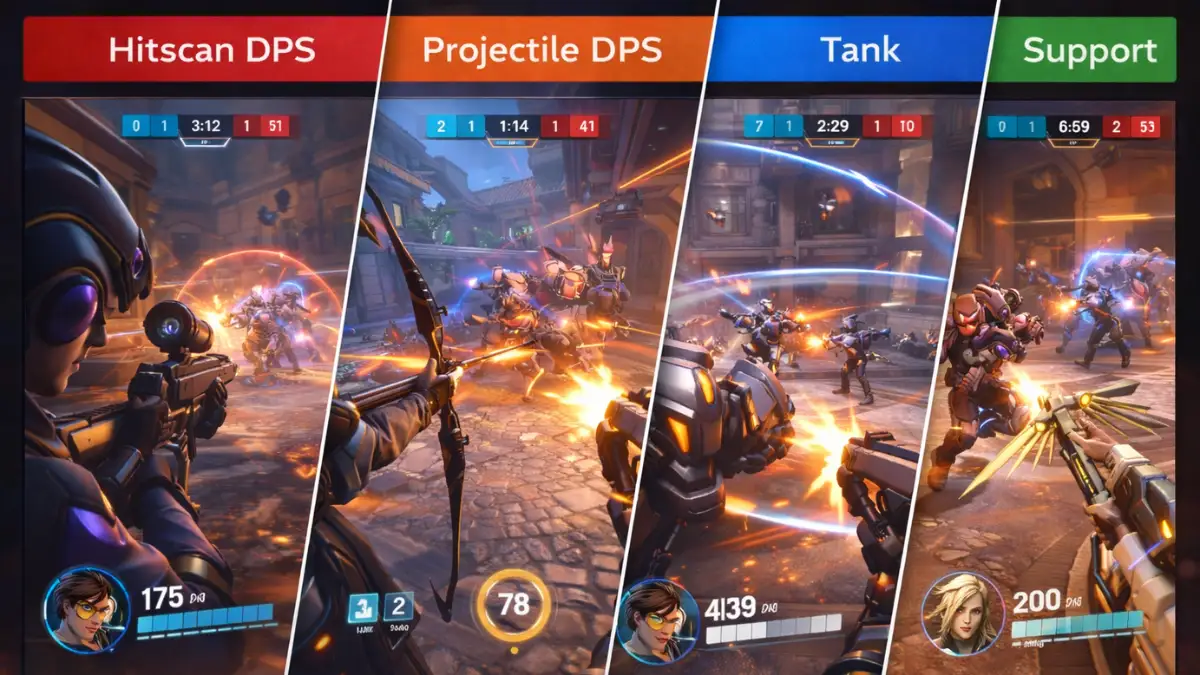
Different heroes benefit from different visual priorities.
Hitscan DPS (Widowmaker, Ashe, Cassidy, Soldier): Prioritize maximum framerates and lowest input lag. Consider slightly higher texture quality for target recognition at range. Effects Detail can be low, you’re tracking enemy models, not ability particles. DLSS Quality mode works excellently for hitscan players needing both high FPS and sharp targets.
Projectile heroes (Pharah, Junkrat, Hanzo): Similar to hitscan priorities, but you may want slightly higher Effects Detail to track your own projectiles. Hanzo players especially benefit from seeing arrow travel clearly.
Tank players: Peripheral awareness matters more than precise aim tracking for most tanks. Ensure FOV is maxed and framerates stay consistent during team fight chaos. Tank players can tolerate slightly lower framerates (144+ vs 240+) if it means better visual clarity for ability management.
Support players: Need to track teammates and enemies simultaneously while managing abilities. Consistent framerates matter more than maximum framerates, stability prevents target-switching delays during healing prioritization. Consider slightly higher Model Detail to quickly identify which teammate needs healing.
Audio settings for competitive awareness
Audio provides essential information in Overwatch: ultimate callouts, footsteps, and ability sounds determine many plays.
Sound: Adjust to comfortable listening level without causing fatigue during extended sessions.
Music: 0% during competitive play. Background music masks gameplay-relevant audio cues.
In-Game Voice: 70-100%. Team communication is essential in a team-based game.
Sound Effects: 100%. Includes footsteps, abilities, and ultimate sounds you need to hear.
Voice Chat Volume: Based on your team communication preferences.
Dolby Atmos: Personal preference. Some players find it helps vertical audio positioning for tracking Pharahs and high-ground plays; others prefer stereo for cleaner lateral accuracy. Test both in Practice Range with audio-focused exercises.
Sound Quality: High. Audio processing has minimal performance impact while providing better positional accuracy.
System-level optimization
Windows and driver settings affect Overwatch 2 performance beyond in-game options.
Power plan: High Performance or Ultimate Performance. Ensures CPU maintains high clocks during intense team fights where performance matters most.
Background applications: Close unnecessary programs. Discord overlay, browsers, and streaming software consume resources that affect framerate consistency.
NVIDIA settings:
For complete NVIDIA configuration, see the NVIDIA Control Panel settings guide. Key settings for Overwatch 2:
- Power management: Prefer maximum performance
- Low Latency Mode: On (works alongside in-game Reflex)
- Vertical Sync: Off
- Shader Cache: On (large size)
- DLSS: Configure in-game, not in Control Panel
AMD settings:
For complete AMD configuration, see the AMD Radeon settings optimization guide. Key settings:
- Anti-Lag: Enabled (AMD Anti-Lag 2 provides even better results in games that support it natively, check if OW2 has been updated for native support)
- Surface Format Optimization: Enabled
- Shader Cache: Enabled
- FSR: Configure in-game rather than driver-level
Driver updates: Keep GPU drivers current. Blizzard works with NVIDIA and AMD on game-specific optimizations delivered through driver updates. New seasons occasionally introduce performance changes that driver updates address.
Network optimization for Overwatch 2
Overwatch’s netcode makes network performance critical for competitive play.
Connection type: Wired Ethernet strongly recommended. Wireless introduces latency variance that affects shot registration consistency. Even modern WiFi 6 can’t match Ethernet’s consistency.
Server selection: Overwatch automatically selects servers based on ping. If experiencing high latency, check your region settings in Battle.net launcher.
Network statistics: Enable network statistics through Options > Video > Display Performance Stats. Monitor latency (IND) and interpolation delay (INT).
Optimal network metrics:
- Latency (IND): Under 50ms for regional servers
- Packet loss: 0%
- Interpolation (INT): Stable values without spikes
Router configuration: Enable QoS prioritizing gaming traffic if available. Ensure no bandwidth-heavy activities (downloads, streaming) during competitive sessions.
Performance verification and monitoring
Confirm optimizations deliver results through measurement.
Enable performance display: Options > Video > Display Performance Stats shows FPS, latency, and network statistics during gameplay.
Test demanding scenarios:
- Team fights with multiple ultimates (Graviton combos, Blade + Nano)
- Maps with extensive particle effects (Eichenwalde fires, Ilios lighthouse)
- 5v5 sustained fights in enclosed spaces
Target metrics:
- Stable FPS at or above monitor refresh rate
- 1% lows above 60% of average FPS
- System latency under 20ms with Reflex enabled
- Network latency under 50ms to regional servers
Consistency over peaks: Stable 200 FPS beats 300 FPS that drops to 120 during ultimates. Adjust settings until team fight performance remains consistent. The goal is eliminating frame drops during the moments that matter most.
Reduce Buffering verification: This critical setting dramatically affects input responsiveness. Verify it’s enabled after any settings reset or game update, patches occasionally reset specific options.
DLSS/FSR verification: If using upscaling, verify it remains enabled after updates. Check that Quality mode is selected rather than Balanced or Performance, which may have been changed by patches.
Final thoughts
Overwatch 2 rewards players who maintain composure through chaos. Proper optimization ensures your hardware delivers consistent performance through every team fight, letting your game sense and mechanics determine outcomes rather than frame drops during crucial moments.
The addition of DLSS and FSR support makes high-framerate Overwatch more accessible than ever. Combined with NVIDIA Reflex for latency reduction, competitive players have more tools than before to eliminate hardware as a variable in their performance.
For optimization strategies covering Valorant, CS2, Apex Legends, and other competitive shooters, see the Competitive FPS optimization guide.