Heat is the silent performance killer lurking inside every gaming PC. Your graphics card generates substantial heat under load, and managing that thermal output determines whether you experience consistent framerates or frustrating throttling. After watching my RTX 3070 throttle during summer gaming sessions, losing 15% performance to heat, I became obsessive about temperature management. The solutions I discovered transformed my system’s consistency and taught me lessons I apply to every build now.
Modern GPUs include thermal protections that prevent catastrophic damage, but these protections work by reducing performance when things get too hot. Proper cooling ensures you never trigger those limitations. This guide covers everything from monitoring tools to cooling upgrades. For complete GPU optimization including driver settings and overclocking, see the comprehensive GPU optimization guide.
Safe temperature ranges
Graphics cards tolerate higher temperatures than many components, but limits exist. Knowing what’s normal versus concerning helps you identify problems before they impact performance.
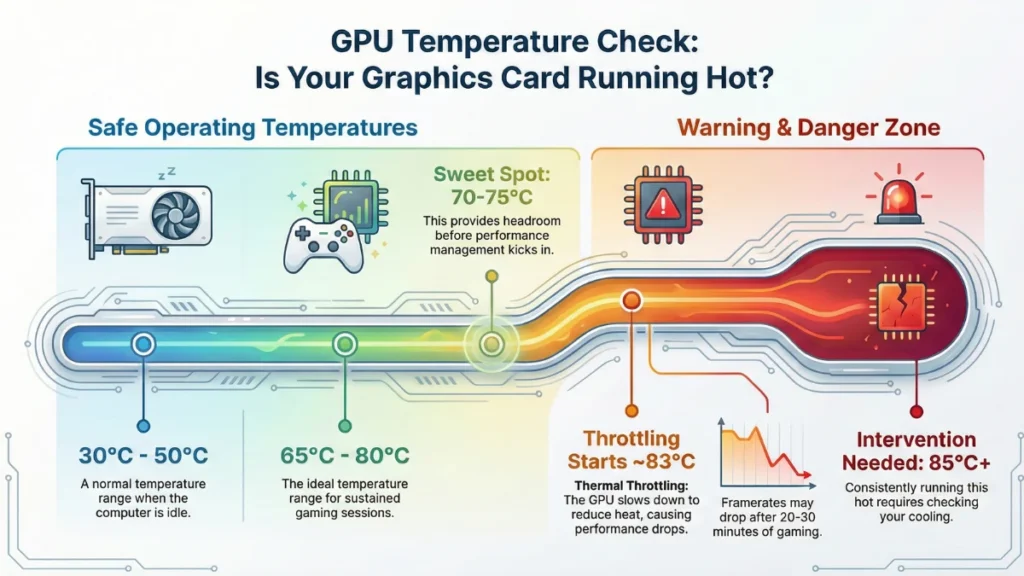
Idle temperatures between 30-50°C are typical for modern GPUs with fans stopped or running slowly. Cards with zero-RPM fan modes run warmer at idle, up to 55°C isn’t unusual or concerning. These temperatures depend heavily on case airflow and ambient room temperature.
Gaming temperatures between 65-80°C fall within normal operating range for most GPUs. The sweet spot for sustained gaming is 70-75°C, providing headroom before thermal management kicks in while keeping components comfortable.
Maximum safe temperatures vary by GPU model but typically top out at 83-93°C. NVIDIA cards generally throttle around 83°C. AMD cards often allow higher targets up to 110°C junction temperature, though sustained operation above 90°C stresses components unnecessarily.
Thermal throttling begins when your GPU approaches its temperature limit. The card reduces clock speeds to generate less heat, directly reducing performance. If your framerates drop after 20-30 minutes of gaming, thermal throttling is a prime suspect.
My rule of thumb: aim for temperatures staying below 80°C during extended gaming sessions. This provides margin for hot summer days and prevents performance-robbing throttling. Cards consistently running 85°C+ need intervention. These limits matter even more if you’re overclocking your GPU, higher clocks generate more heat, and stability requires thermal headroom.
Monitoring tools and methods
Accurate temperature monitoring reveals thermal problems before performance suffers noticeably. Several tools provide real-time visibility into GPU thermal behavior.
MSI Afterburner remains my primary monitoring tool. The detachable hardware monitor displays current, minimum, and maximum GPU temperatures alongside clock speeds, utilization, and fan speeds. Setting up an on-screen display (OSD) through RivaTuner Statistics Server shows temperatures during gameplay without alt-tabbing.
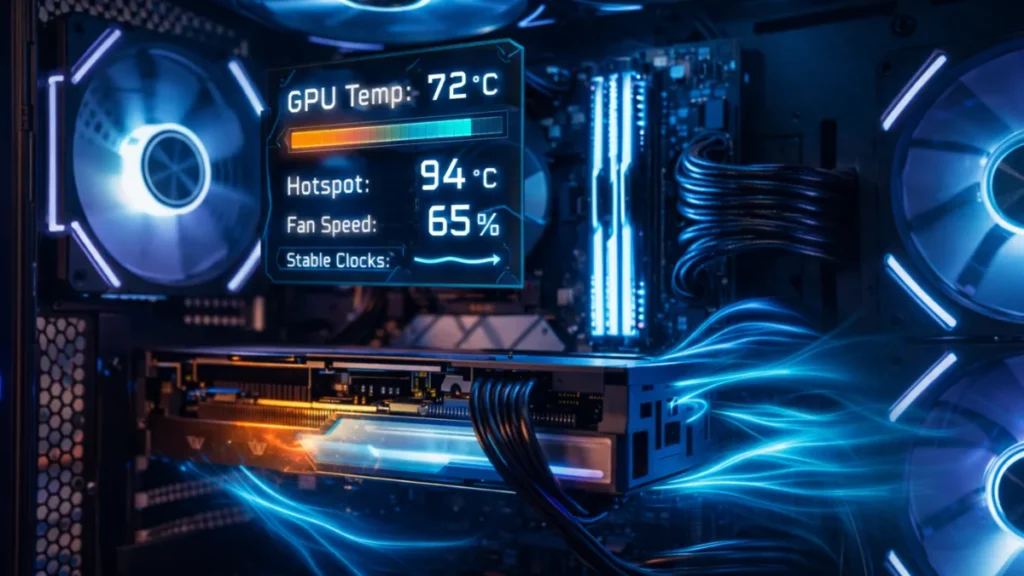
Configure Afterburner’s OSD to display GPU temperature, hotspot temperature (if available), and fan speed. Watching these values during demanding gameplay reveals thermal patterns: whether temperatures stabilize or continue climbing, and how effectively your cooling responds to load.
HWiNFO64 provides exhaustive sensor monitoring including multiple temperature points on modern GPUs. “GPU Temperature” shows the primary sensor, while “GPU Hot Spot” reveals the hottest point on the die: often 10-15°C higher than the primary reading. Monitoring hotspot temperatures catches thermal issues the primary sensor might miss.
GPU-Z offers a simple temperature monitoring tab with logging capability. Less comprehensive than HWiNFO64, but sufficient for basic temperature tracking. The sensors tab shows current temperatures and allows data export for analysis.
Manufacturer software from NVIDIA (GeForce Experience) and AMD (Radeon Software) includes basic temperature monitoring. These tools work adequately for occasional checks but lack the detailed logging and OSD features dedicated monitoring software provides.
I run HWiNFO64 in the background logging temperatures during gaming sessions. Reviewing logs afterward reveals thermal patterns invisible during gameplay, including temperature spikes that might cause momentary stuttering.
Custom fan curves
Stock fan curves prioritize quiet operation over aggressive cooling. Manufacturers assume users prefer silence until temperatures become concerning. For gamers prioritizing performance consistency, more aggressive fan curves make sense.
MSI Afterburner’s fan control lets you define custom curves relating fan speed to temperature. Enable user-defined fan control in settings, then adjust the curve to your preferences.
My approach: fans begin ramping at 50°C rather than the stock 60-65°C starting point. By 65°C, fans run at 60-70% speed. At 75°C, fans approach maximum. This aggressive curve keeps my GPU significantly cooler, typically 8-10°C lower than stock curves, at the cost of additional noise.
Finding your balance between noise and cooling requires experimentation. Test different curves while gaming, noting both temperatures and noise levels. Most gamers wearing headsets tolerate more fan noise than they realize, making aggressive curves practical.
Fan speed limitations vary by cooler design. Some cards’ fans create objectionable noise at high speeds due to bearing quality or blade design. If maximum fan speed sounds terrible, cap your curve below maximum and focus on other cooling improvements.
Zero-RPM mode tradeoffs merit consideration. Many modern cards stop fans entirely at idle, improving acoustics and fan longevity. However, disabling zero-RPM mode through manufacturer software keeps fans spinning constantly, preventing the temperature spikes that occur when fans take time to spin up under sudden load. AMD users can configure this directly in Adrenalin. The AMD Radeon settings guide walks through fan configuration options.
 Case airflow optimization
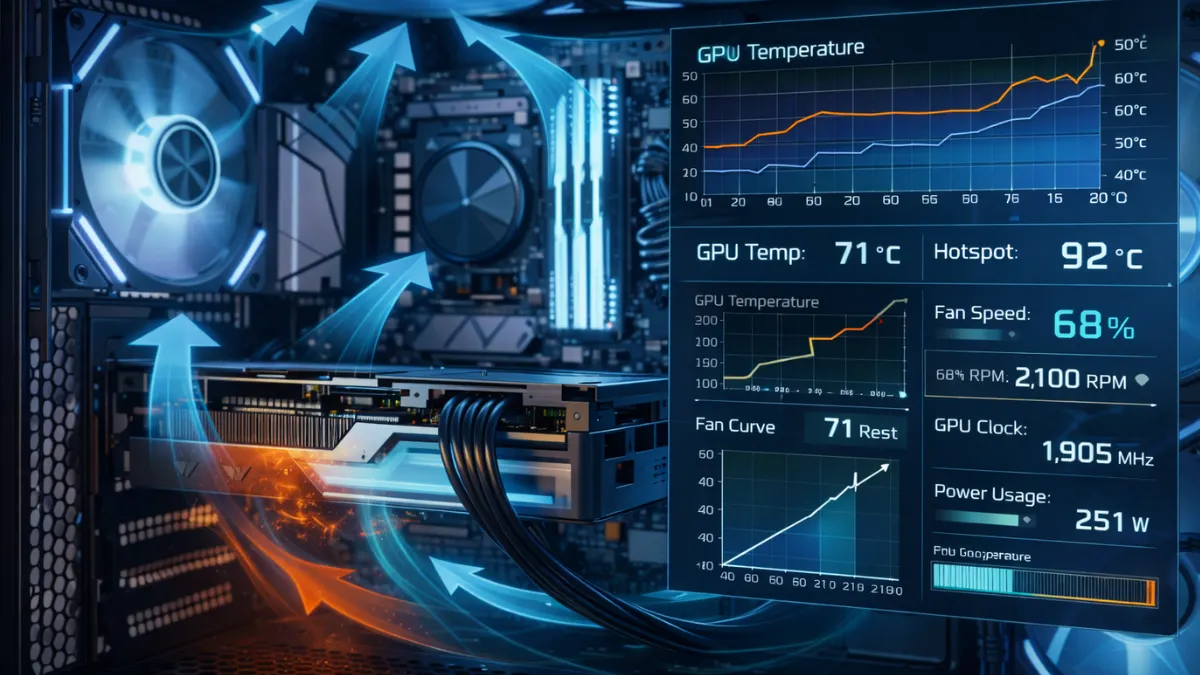 Case airflow optimization
Your GPU doesn’t cool itself in isolation, case airflow dramatically affects thermal performance. Insufficient airflow traps hot exhaust air inside your case, raising ambient temperatures that your GPU must overcome.
Front intake fans draw cool air into your case. Most GPUs pull air from inside the case, so cool intake air directly benefits GPU temperatures. Ensure unobstructed front intake, mesh front panels outperform solid panels significantly.
Rear and top exhaust removes hot air before it recirculates. A rear exhaust fan pulling air out near your GPU’s exhaust area helps immensely. Top exhaust can assist, though its effectiveness depends on case design and component layout.
Positive pressure configuration, more intake than exhaust, reduces dust accumulation while maintaining good airflow. I run two 140mm front intakes and one 120mm rear exhaust, creating slight positive pressure that keeps my system relatively dust-free.
GPU clearance affects how effectively the card breathes. Installing your GPU in the top PCIe slot typically provides better cooling than lower slots due to increased distance from case floor and potential PSU shroud obstruction.
Vertical GPU mounting changes airflow patterns significantly. Some vertical mounts position the GPU close to side panels, restricting airflow. If you use vertical mounting, ensure adequate clearance between the card and side panel: at least 3-4cm for proper air circulation.
I gained 5°C improvement just by replacing my case’s solid front panel with a mesh alternative. Case airflow often provides more benefit than aftermarket GPU cooling solutions.
Thermal paste replacement
GPU thermal paste degrades over time, and factory applications vary in quality. Replacing thermal paste on your graphics card can dramatically improve temperatures, but the process involves disassembly that voids warranties and risks damage if performed incorrectly.
When to consider repasting: If your GPU runs significantly hotter than reviews indicated for your model, temperatures have increased noticeably over time, or you’ve purchased a used card with unknown history, repasting may help. Cards running within normal ranges don’t require intervention.
Thermal paste selection matters for GPUs. High-quality pastes like Thermal Grizzly Kryonaut, Noctua NT-H1, or Arctic MX-5 perform excellently on graphics cards. Avoid liquid metal unless you’re experienced, the risk of shorting components exceeds the thermal benefit for most users.
The repasting process involves removing your cooler from the GPU die, cleaning old paste with isopropyl alcohol, applying fresh paste, and reassembling carefully. Thermal pads covering VRAM and VRMs also need attention, replacing with appropriate thickness pads if originals are damaged or compressed.
Expected improvements from repasting vary based on original paste quality and application. Poor factory paste jobs show 10-15°C improvements after repasting. Cards with decent original paste may see only 3-5°C improvement. The benefit increases with card age as original paste dries out.
I repasted my RTX 3070 after two years of heavy use. Temperatures dropped 12°C, from 82°C peak to 70°C in the same games. The difference transformed summer gaming from throttle-prone to completely consistent.
Dealing with thermal throttling
If your GPU already throttles, identifying the root cause guides appropriate solutions. Throttling has multiple potential causes requiring different interventions.
Verify throttling is occurring using monitoring software. Watch GPU clock speeds during gaming, throttling shows as clock speeds dropping below boost specifications when temperatures reach limits. HWiNFO64’s “Performance Limit – Thermal” indicator confirms temperature-based throttling specifically.
Immediate solutions include increasing fan speeds, improving case airflow, and reducing ambient room temperature. Running air conditioning during summer gaming sessions sounds silly but genuinely helps. Opening case side panels temporarily can diagnose whether case airflow is limiting, if temperatures drop significantly with the panel removed, airflow improvements will help.
Undervolting reduces heat generation while maintaining performance. Using MSI Afterburner’s voltage-frequency curve, you can set your GPU to run the same clocks at lower voltages, reducing power consumption and heat output. My 3070 runs 50mV lower than stock at identical clocks, dropping temperatures noticeably with zero performance loss.
Driver and BIOS updates occasionally address thermal behavior. Manufacturers sometimes release updates that adjust fan curves or thermal limits. Check for GPU BIOS updates through manufacturer utilities if your card runs unexpectedly hot.
Hardware interventions become necessary when software solutions prove insufficient. Aftermarket coolers like Arctic’s Accelero series or custom water cooling loops transform thermal behavior entirely but require significant investment and installation effort.
Long-term thermal health
Maintaining good thermal habits protects your investment over years of gaming.
Regular cleaning prevents dust accumulation that insulates heatsinks and clogs fans. Every 3-6 months, remove built-up dust using compressed air. Focus on heatsink fins and fan blades where dust accumulates most heavily.
Monitor trends over time by occasionally logging temperatures in the same games. Gradual increases over months suggest dust accumulation or thermal paste degradation. Sudden increases indicate fan problems or other hardware issues.
Seasonal awareness helps anticipate thermal challenges. Summer temperatures affect cooling capability significantly. A GPU running perfectly at 22°C ambient may struggle when room temperature reaches 30°C. Adjusting fan curves seasonally addresses this variation.
Fan health monitoring catches failing fans before they die completely. Fans making unusual noises, failing to spin at requested speeds, or showing erratic behavior indicate pending failure. Addressing fan issues early prevents thermal emergencies when fans stop entirely.
Good thermal management extends GPU lifespan while ensuring consistent performance throughout that lifespan. The time invested in proper cooling setup pays dividends across years of gaming sessions: no throttling, no inconsistency, just smooth framerates regardless of how demanding your games become.