Overclocking sounds like something that voids warranties and fries hardware. At least that’s what I thought before I actually tried it. Turns out modern GPUs have so many built-in protections that you’d have to actively try to damage them, and even then, the card would probably just crash and reset before anything bad happened.
I’ve overclocked every GPU I’ve owned over the past five years. Some were great overclockers, others barely budged past stock. The silicon lottery is real and sometimes frustrating. But the process itself? Way less intimidating than forums make it seem.
Expect 5-15% performance gains depending on your card. Not earth-shattering, sure. But it’s free performance sitting there waiting to be unlocked. For competitive gamers chasing framerate thresholds or anyone wanting maximum value from their hardware, this is low-hanging fruit.
Overclocking is an advanced optimization technique. For foundational GPU settings and configurations to implement before overclocking, start with the complete GPU optimization guide.
What overclocking actually does
Your graphics card ships with conservative clock speeds. Manufacturers set these to ensure stability across millions of units under all conditions. The thing is, your specific card can probably run faster. Overclocking raises those limits.
Two numbers matter: core clock and memory clock. Core clock controls how fast the processing cores run, this typically provides the most noticeable gains. Memory clock affects VRAM speed, important for texture-heavy games but usually less impactful overall.
Modern GPUs have boost clocks too, dynamic frequencies the card hits under favorable conditions. When you overclock, you’re essentially raising the ceiling on these boosts. Your card runs faster when thermals and power delivery allow it.
Voltage is another factor but honestly, beginners should ignore it. Higher voltage stabilizes higher clocks but generates more heat. The risks outweigh benefits until you really understand your card’s behavior. I didn’t touch voltage settings for my first year of overclocking.
Getting started with MSI Afterburner
MSI Afterburner is the tool. Doesn’t matter what brand GPU you have, works with everything. Free, reliable, been around forever. Download from MSI’s website or Guru3D.
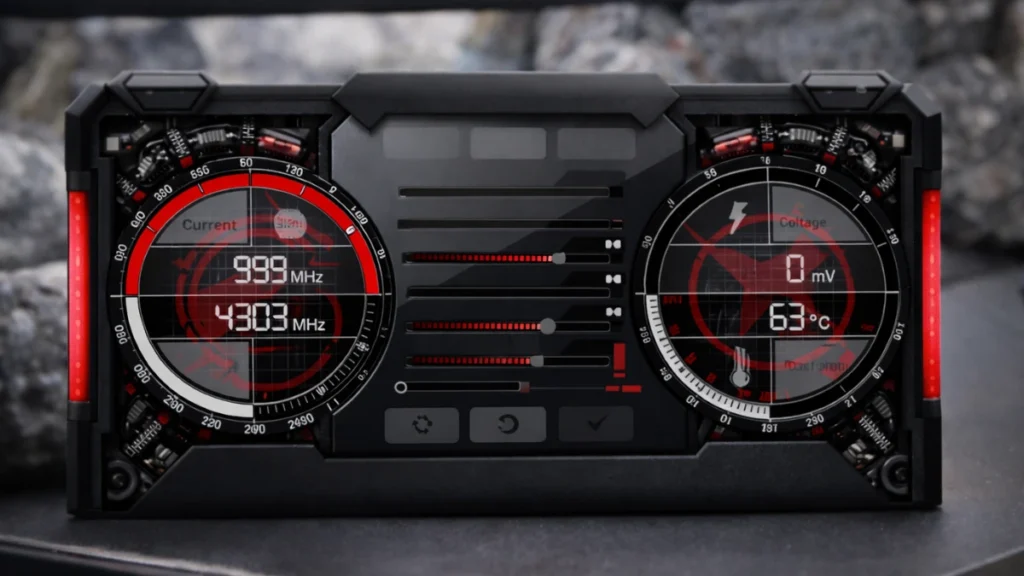
The interface looks complicated at first. Sliders for power limit, core clock, memory clock, fan speed. Monitoring graphs showing real-time statistics. Take a few minutes to familiarize yourself before touching anything.
Before overclocking, establish baseline performance. This step is crucial and most beginners skip it. Run 3DMark Time Spy or a demanding game’s built-in benchmark. Record your score, average FPS, temperatures. Without baseline numbers, you’re just guessing whether your overclock actually helped.
Update GPU drivers to latest stable version. Outdated drivers cause weird stability issues that’ll confuse your troubleshooting. Clean installation through DDU provides the best starting point if you want to be thorough about it.
One more thing, check your cooling situation. If your GPU already hits 80°C+ at stock settings, fix that first. Overclocking increases heat output. Thermally limited cards throttle rather than maintaining higher clocks. Clean dust from heatsinks, make sure case airflow isn’t terrible.
Power limit: the first adjustment
Before touching clocks, max out power limit. This slider controls how much power your GPU can draw.
Most cards default to 100% but allow 110-120% or higher. Slide it to maximum. This doesn’t automatically increase power consumption, just raises the ceiling. Your GPU can draw more when beneficial instead of throttling to stay within restrictive limits.
Run your benchmark again after this change. You might see modest improvement just from giving the card room to breathe. Temperatures will increase slightly. Make sure they’re still acceptable before continuing.
Core clock overclocking
Here’s where it gets fun. The process is iterative: increase clocks slightly, test stability, repeat until something breaks, back off to last stable value.
Start with +50 MHz core offset. Click Apply. Run quick stability test—few minutes of intensive gaming or benchmarking. Watch for visual artifacts. Strange flickering, colored pixels, geometric distortions. Also watch for crashes obviously. If everything runs normal, that’s a stable point.
Add another +25 MHz. Test again. Keep going in smaller increments as you approach your card’s limits. Eventually instability appears: artifacts, driver crashes, system freezes.
When that happens, reduce core clock by 25-50 MHz from the unstable value. That’s your stable maximum. Run extended testing, full benchmark loop or 30+ minutes of demanding gameplay, to confirm long-term stability. Some instability only shows up after thermal saturation during longer sessions.
My RTX 4070 Ti stabilized at +150 MHz offset. About 7% higher average clocks during gaming. Your results will vary. Silicon lottery means identical models perform differently. A friend’s same card only managed +100 MHz stable. Another hit +175 MHz. It’s genuinely random.
Memory clock overclocking
Memory follows similar methodology but instability looks different. Memory errors often show as subtle texture corruption rather than hard crashes. Flickering textures, missing geometry, weird visual glitches.
Start with +100 MHz memory offset. Increase in +50 MHz increments until problems appear. Here’s something counterintuitive though, memory overclocking has diminishing returns at extreme values. Error correction kicks in at unstable speeds, and sometimes reducing clocks from unstable levels actually improves real-world performance.
Test memory separately from core initially. Find stable limits for each, then combine for final testing. Aggressive settings working independently sometimes become unstable together. Ask me how I learned that one.
Memory overclocking generally provides smaller percentage gains than core in most games. I aim for moderate stable memory clocks rather than pushing limits. The 2-4% improvement from aggressive memory rarely justifies potential instability.
Temperature and fan management
Overclocking generates more heat. Managing temperatures keeps your overclock stable during extended sessions and protects long-term hardware health.
Configure custom fan curve in Afterburner. Default curves prioritize quiet operation, letting temperatures climb higher than necessary. More aggressive curves that ramp fans earlier keep temps lower at cost of noise.
My curve targets 70°C maximum. Fans start ramping at 50°C, hit 70% speed by 65°C, reach maximum by 75°C. Keeps things cool without being obnoxiously loud during normal gaming.
If temperatures exceed 83-85°C during stress testing, your cooling can’t handle the overclock. Either reduce clocks, improve case airflow, or consider aftermarket cooling. Sustained high temps accelerate component aging even without immediate throttling.
Stress testing properly
Quick benchmark runs confirm basic stability. Thorough testing reveals problems appearing only during extended operation.
Run 3DMark Time Spy Extreme for multiple loops. Monitor temperatures and clocks throughout. Score degradation across runs suggests thermal throttling or emerging instability.
Test actual games too, especially demanding titles you play regularly. Synthetic benchmarks stress GPUs differently than real games. An overclock stable in Time Spy might crash Cyberpunk 2077. Gaming stability matters more than benchmark numbers for practical use.
I recommend minimum two hours of varied gaming before trusting an overclock. Different games stress different capabilities. If system remains stable throughout, you’re good for daily use.
Saving settings and troubleshooting
Save stable settings using Afterburner’s profile slots. Enable “Apply overclocking at system startup” if you want settings active automatically.
Common issues and fixes:
Crashes in games but not benchmarks: Game-specific instability. Reduce clocks slightly.
Gradual performance degradation: Thermal throttling. Check temps, improve cooling.
Hard freezes requiring restart: Overclock too aggressive. Reduce significantly, work back up carefully.
Artifacts without crashes: Memory instability. Reduce memory clock even if core seems stable.
Instability after driver updates: New drivers occasionally change behavior. Retest overclock after major updates.
Worth the effort?
For few hours of testing, overclocking provides meaningful free performance. The 5-15% won’t transform a struggling GPU into a powerhouse, but maximizes value from hardware you already own.
Competitive gamers benefit most when chasing specific thresholds. Pushing from 138 to 145 FPS matters when targeting 144Hz monitors. Same percentage feels less significant at 200+ FPS.
Modern protections make this remarkably safe. Worst case, crashes or artifacts that disappear at stock settings. Hardware damage from basic overclocking is essentially impossible on current cards. Thermal throttling and power limits prevent dangerous conditions automatically.
Start conservative. Test thoroughly. Enjoy the free frames.
Combine your overclock with optimized control panel settings using the NVIDIA Control Panel guide or AMD Radeon settings guide.