
On this page
Windows is the foundation of PC gaming, but default configurations prioritize general usability over gaming performance. After two years of testing every meaningful Windows tweak across dozens of systems, I’ve identified what actually improves gaming versus what wastes your time. This guide covers the complete spectrum of Windows optimization, from essential settings every gamer should configure to advanced tweaks for competitive players chasing every millisecond of latency.
Whether you’re experiencing unexplained stuttering, want to reduce input lag for competitive play, or simply want your system running at its best, proper Windows configuration makes a measurable difference. The optimizations here range from five-minute quick wins to advanced configurations for enthusiasts.
Windows version selection and core configuration
The foundation of Windows gaming optimization starts with your operating system version and its core settings. Windows 10 and Windows 11 handle gaming workloads differently, and choosing the right version, then configuring it properly, establishes the baseline for all other optimizations.
Windows 11 has matured significantly since its launch, resolving early performance issues that made gamers hesitant to upgrade. Modern Windows 11 includes genuine gaming advantages: improved CPU scheduling that benefits AMD Ryzen processors particularly well, DirectStorage support for faster asset loading, Auto HDR for enhanced visuals in older games, and refined Game Mode implementation. For most gamers building new systems or performing fresh installations, Windows 11 is now the recommended choice.
However, the operating system version matters less than proper configuration. Both Windows 10 and 11 ship with settings optimized for general use rather than gaming. Features like Hardware-Accelerated GPU Scheduling, variable refresh rate support, and optimized graphics settings require manual verification and enablement. Display refresh rates sometimes default to 60Hz despite monitors supporting higher rates. Gaming-specific features hide in settings menus most users never explore.
Core configuration also involves decisions about feature updates, telemetry, and Windows components. Understanding which features benefit gaming versus which consume resources without providing value helps you build a lean, responsive gaming environment.
For detailed testing data and step-by-step configuration of Windows 11 gaming settings, see our complete Windows 11 gaming optimization guide. For a direct performance comparison between operating systems, explore our Windows 10 vs Windows 11 gaming performance analysis.
Game Mode and Hardware-Accelerated GPU Scheduling
Two Windows features generate endless debate among gamers: Game Mode and Hardware-Accelerated GPU Scheduling (HAGS). Understanding what each actually does, rather than following forum speculation, helps you make informed decisions about enabling or disabling them.
Game Mode isn’t a magic performance button. It’s a collection of system behavior modifications that prioritize gaming sessions over background Windows activities. When active, Game Mode prevents Windows Update from installing drivers mid-game, reduces background process priority, suppresses notifications, and optimizes memory allocation for your active game. The result is improved frame time consistency rather than raw FPS gains, fewer micro-stutters during gameplay, particularly when running background applications.
Hardware-Accelerated GPU Scheduling operates differently, restructuring how Windows manages GPU resources at a fundamental level. Traditional GPU scheduling requires your CPU to manage memory queues and command scheduling for the graphics card. HAGS shifts this responsibility directly to the GPU’s dedicated scheduling processor, reducing CPU overhead and lowering input latency by typically 1-2 milliseconds.
Both features have evolved significantly since their introduction. Early implementations caused compatibility issues that justified blanket “disable everything” advice. Modern Windows versions handle both features maturely, and most gamers benefit from keeping them enabled. However, specific scenarios: older games, particular hardware configurations, or competitive gaming priorities, may warrant different approaches.
For complete testing data, compatibility considerations, and configuration guidance, see our in-depth guide on Game Mode and Hardware-Accelerated GPU Scheduling.
Power plan optimization for gaming
Power plans seem irrelevant for desktop gaming PCs plugged into wall outlets, but Windows power settings directly control CPU behavior, component power states, and performance consistency. The default “Balanced” power plan prioritizes energy efficiency, causing issues that manifest as unexplained micro-stutters during gaming.
The problem centers on CPU frequency scaling. Balanced mode dynamically adjusts processor speeds based on perceived demand, ramping down during lighter loads and up during heavy usage. These transitions aren’t instantaneous, when your game suddenly demands CPU power, the processor needs milliseconds to reach full speed. Those milliseconds appear as frame time spikes, creating stuttering that no graphics settings adjustment will fix.
Beyond CPU management, power plans control PCI Express power states, USB device suspension, and hard drive sleep behavior. Your GPU can enter lower power states between frames, causing brief hitches when transitioning back to full performance. USB selective suspend can introduce momentary input lag when mice or keyboards wake from suspended states. Each of these power-saving features makes sense for laptops on battery but creates inconsistency for gaming desktops.
Windows offers several power plan options beyond Balanced, including High Performance and the hidden Ultimate Performance plan. Each progressively reduces power-saving behaviors at the cost of slightly higher energy consumption. Custom power plans allow fine-tuned control over specific behaviors while leaving others at efficient defaults.
For step-by-step configuration of gaming-optimized power plans, including the Ultimate Performance unlock process and advanced settings, see our Windows power plan optimization guide.
Background process and startup management
Your gaming PC isn’t exclusively running your game, it’s simultaneously managing dozens of background processes competing for CPU cycles, RAM, and disk access. While individual processes may seem harmless, their cumulative impact creates resource contention that affects gaming performance, particularly on systems with limited cores or memory.
Background processes impact gaming through multiple channels. CPU usage from update checkers, sync services, and monitoring tools reduces cycles available for game logic. Memory consumption from applications you’re not actively using leaves less RAM for game assets. Disk activity from cloud sync, indexing services, and automatic backups can cause stuttering during asset streaming, especially on systems still using hard drives for game storage.
Startup programs compound this problem by establishing persistent background presence from the moment you boot. Every application configured to launch at startup: game launchers, RGB software, cloud storage clients, manufacturer utilities, continues running throughout your computing session. Over months of software installation, startup bloat accumulates silently, transforming quick boot times into minutes-long waits while background processes fight for resources.
The solution requires surgical precision rather than aggressive disabling. Some processes are essential for system stability or features you actually use. Others are pure resource thieves providing no value during gaming. Identifying which processes fall into each category, and managing them effectively, frees substantial resources without breaking functionality you depend on.
For comprehensive guidance on identifying and managing resource-consuming processes, see our guides on disabling Windows background processes and Windows startup program management.
Windows Update control for gamers
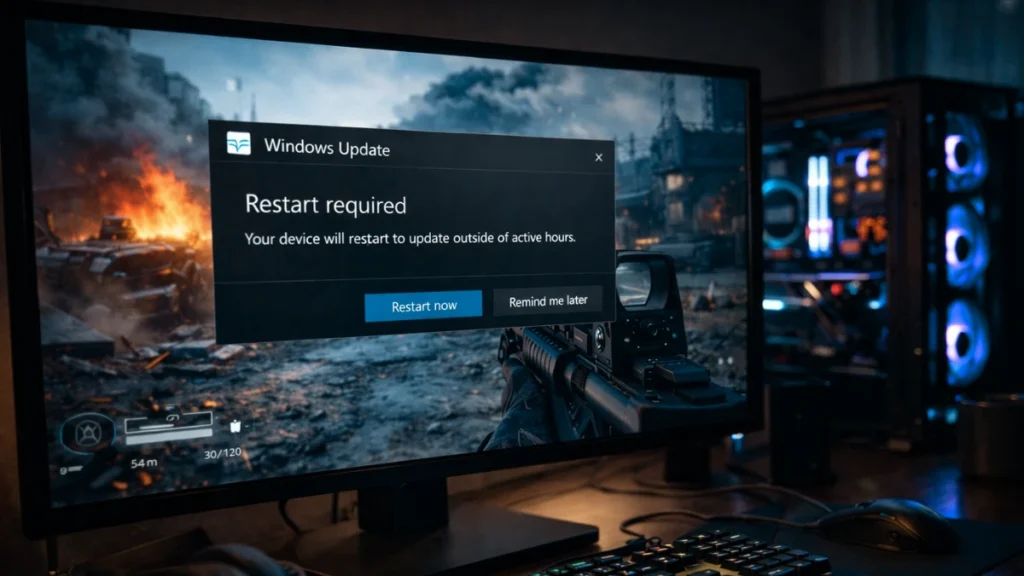
Few experiences frustrate gamers more than Windows deciding to restart mid-session for an update nobody requested. Beyond interruptions, updates occasionally break graphics drivers, reset optimized settings, or introduce compatibility issues that turn smooth gaming into stuttering frustration. Windows updates are necessary for security and stability, but Microsoft’s aggressive update policies conflict with gaming priorities.
Modern Windows treats updates differently than previous versions, with automatic downloads, forced installations, and limited user control over timing. Quality updates arrive monthly with security patches and bug fixes. Feature updates deliver major Windows versions once or twice yearly, essentially installing new operating systems with higher compatibility risk. Driver updates through Windows Update can replace carefully configured Game Ready drivers with older versions from Microsoft’s repository.
The goal isn’t avoiding updates entirely, that creates security vulnerabilities. Instead, effective update management means controlling when updates happen, preventing driver overwrites, and maintaining the ability to recover from problematic updates. Active Hours configuration protects gaming sessions from automatic restarts. Update pausing provides breathing room during critical gaming periods or after hearing about problematic releases. Driver update prevention ensures your graphics drivers come from NVIDIA or AMD rather than Microsoft’s delayed repository.
Understanding Windows Update behavior and configuring appropriate controls prevents both mid-game interruptions and post-update performance disasters while maintaining the security benefits updates provide.
For complete configuration guidance including Active Hours setup, driver update prevention, and recovery strategies, see our Windows Update management guide for gamers.
Fullscreen and display settings
How Windows handles fullscreen applications significantly affects gaming performance and input latency. The “disable fullscreen optimizations” advice appears in nearly every optimization guide, but like many gaming tips passed around forums, the recommendation often lacks context about what this setting actually does and when disabling it helps versus hurts.
Fullscreen optimizations is a Windows feature that intercepts games attempting exclusive fullscreen mode, instead running them through a hybrid approach. Traditional exclusive fullscreen gives games complete display control with lowest latency, but makes Alt-Tab switching slow and can break overlays. Fullscreen optimizations provides fast window switching and consistent overlay behavior at the cost of small latency increases as frames pass through Windows’ compositor.
The blanket “always disable” advice originated during Windows 10’s early days when the feature caused genuine problems. Modern implementations handle fullscreen optimizations far better, and the tradeoff calculation has changed. Competitive gamers chasing every millisecond may benefit from disabling it. Casual players, streamers, and anyone valuing quality-of-life features like fast Alt-Tab often benefit from keeping it enabled.
Beyond fullscreen behavior, Windows display settings affect gaming in other ways. Variable refresh rate support for windowed games, Auto HDR application, and critically ensuring Windows uses your monitor’s actual maximum refresh rate all require verification. Display configuration issues cause more “my game feels sluggish” complaints than almost any other Windows setting.
For detailed testing results and guidance on when to enable or disable fullscreen optimizations, see our complete fullscreen optimizations analysis.
Security software configuration
Windows Security, formerly Windows Defender, runs continuously on most gaming PCs, scanning files in real-time and monitoring for threats. The performance question every gamer asks is how much this constant protection actually costs in frames and load times.
Real-time scanning impacts gaming primarily during file access operations. Game launches involve reading thousands of files, each potentially scanned by Windows Security. Level loads, asset streaming, and shader compilation all trigger file access that security software examines. The result is extended load times and occasional micro-stutters during asset-heavy moments. Once game data is cached in memory, ongoing performance impact diminishes significantly.
Testing reveals the actual cost: load times increase 20-30% with default configuration, while runtime FPS impact typically stays under 3% on modern systems. The impact scales with storage speed, ystems with NVMe drives experience less noticeable delays than those using older SATA SSDs or hard drives.
The solution isn’t disabling protection, that creates unacceptable security risk. Instead, proper exclusion configuration tells Windows Security to skip scanning trusted game folders, shader caches, and launcher executables. This eliminates scanning overhead for files you know are safe while maintaining protection for downloads, browser activity, and system files where threats actually originate. Additional configuration around Controlled Folder Access prevents ransomware protection from blocking legitimate game saves.
For complete exclusion configuration, scheduled scan optimization, and security-performance balance guidance, see our Windows Defender gaming performance guide.
Visual effects and system resources
Windows presents a polished visual experience through animations, transparency effects, shadows, and smooth transitions. Every visual flourish consumes system resources, CPU cycles for animation processing, GPU rendering for transparency and blur effects, and memory for caching visual elements. For gaming, the question becomes whether these cosmetic features are worth their performance cost.
The Desktop Window Manager handles window rendering and visual effects, consuming GPU resources even on idle desktops. Transparency effects blur content behind windows and taskbars, requiring continuous GPU computation. Animations for window minimizing, menu fading, and control elements consume CPU cycles during every interaction. Shadows beneath windows and cursors add rendering overhead that accumulates across the interface.
However, the performance impact varies dramatically based on hardware. High-end systems with modern dedicated GPUs handle visual effects without meaningful gaming impact, the overhead is negligible relative to available resources. Budget systems, those with integrated graphics, or older hardware see more significant benefits from reducing visual effects. Systems with limited RAM benefit from lower memory consumption when effects are disabled.
The optimization approach should match your hardware reality. Aggressive effect reduction makes sense for constrained systems where every resource matters. Modern gaming PCs can maintain full visual polish without sacrificing gaming performance. Understanding which effects cost the most helps you make targeted reductions that improve performance without making Windows feel broken or dated.
For hardware-specific recommendations and step-by-step visual effects configuration, see our visual effects and performance settings optimization guide.
Memory and virtual memory management
Virtual memory remains one of the most misunderstood Windows features among gamers. Forums overflow with contradictory advice, some insist on disabling the page file entirely, others recommend complex size calculations, and many simply leave Windows to manage it automatically. Proper configuration genuinely affects gaming stability and performance, particularly in memory-intensive modern titles.
The page file extends physical RAM using storage space, but it’s more nuanced than simply “using your hard drive as RAM.” When physical memory fills, Windows moves less-frequently-accessed data to the page file, freeing RAM for active applications. Games increasingly demand substantial memory, modern AAA titles can consume 12-16GB while system processes and background applications claim additional resources. Without adequate virtual memory, exceeding physical RAM causes crashes rather than graceful performance degradation.
Page file configuration involves decisions about size, placement, and management approach. Windows’ automatic management works reasonably well but can cause stuttering when dynamically resizing the page file mid-game. Fixed-size page files on fast NVMe storage eliminate resize-related stutters. Proper sizing based on your RAM amount ensures adequate commit space without wasting storage.
The common advice to disable the page file entirely creates stability risks without meaningful performance benefit. Systems with sufficient RAM rarely access the page file during gaming, meaning its existence costs nothing while providing crucial crash protection. Configuration should focus on optimizing behavior, not elimination.
For RAM-specific sizing recommendations and optimal page file configuration, see our virtual memory and page file optimization guide.
Advanced optimization: registry, network, and interrupts
Beyond standard Windows settings, advanced optimizations target system behaviors that typical configuration interfaces don’t expose. Registry modifications, network stack tuning, and interrupt handling adjustments address specific performance aspects that matter most for competitive gaming and troubleshooting persistent issues.
The Windows Registry controls countless system behaviors through a hierarchical database of configuration values. Some registry tweaks provide measurable benefit, network throttling adjustments, system responsiveness priorities, and game scheduling categories can reduce latency and improve consistency. However, most viral “gaming registry tweaks” either duplicate settings available through normal interfaces or modify values irrelevant to modern Windows. Distinguishing effective tweaks from outdated placebo requires understanding what each modification actually does.
Network optimization reduces latency between your PC and game servers. Windows handles network traffic through multiple configuration layers, and default settings prioritize bandwidth efficiency over latency. Adapter interrupt moderation, Nagle’s algorithm batching, and DNS server selection all affect online gaming responsiveness. Proper configuration typically yields 5-15ms latency improvement, not dramatic for casual play but meaningful for competitive gaming.
Interrupt handling determines how quickly hardware devices get CPU attention. Message Signaled Interrupts (MSI) provide faster communication than legacy line-based interrupts, reducing latency for GPU frame delivery and input device responsiveness. Most modern hardware supports MSI, but Windows doesn’t always enable it by default, leaving potential responsiveness gains untapped.
Frequently asked questions
Does Windows optimization actually improve FPS? Most Windows optimizations improve frame time consistency and reduce input latency rather than dramatically increasing average FPS. You’ll experience fewer stutters and more responsive input, but don’t expect massive framerate gains. The exception is systems with significant background process bloat or misconfigured power plans, where optimization can recover 5-10% performance.
Should I use Windows 10 or Windows 11 for gaming? Windows 11 is now recommended for most gamers. Early performance issues have been resolved, and Windows 11 offers exclusive features like DirectStorage, Auto HDR, and improved CPU scheduling for AMD Ryzen processors. Windows 10 remains viable but loses security support in October 2025.
Is it safe to disable Windows Defender for gaming? No. Disabling security protection creates unacceptable risk for minimal performance benefit. Instead, configure exclusions for game folders and shader caches. Properly configured, Windows Defender has negligible impact on gaming performance while maintaining protection.
Will these optimizations work on gaming laptops? Most optimizations apply to laptops, but power plan configuration differs significantly. Laptops must balance performance with thermal constraints and battery life. Use manufacturer power management software alongside Windows settings, and expect different optimal configurations for plugged-in versus battery gaming.
How often should I re-check these settings? Verify your configuration after major Windows updates, which can reset power plans, re-enable disabled features, and reinstall removed apps. A monthly review of startup programs and background processes prevents gradual bloat accumulation.
Do I need to apply every optimization in this guide? No. Start with high-impact optimizations: power plan configuration, background process management, and security exclusions. Advanced tweaks like registry modifications and interrupt optimization provide diminishing returns and matter most for competitive gaming or troubleshooting specific issues.
Can Windows optimization fix stuttering issues? Windows configuration causes specific types of stuttering, power plan transitions, background process interference, and page file resizing. If optimization doesn’t resolve stuttering, investigate hardware issues (thermal throttling, failing components), driver problems, or game-specific settings.
Windows optimization transforms your gaming PC from fighting against its operating system to working seamlessly with it. The configurations outlined in this guide address every layer of Windows that affects gaming, from foundational settings like power plans and Game Mode through advanced tweaks for competitive players seeking every possible advantage.
Start with the fundamentals: configure your power plan, manage startup programs, set up security exclusions, and verify your display settings. These quick wins provide the most noticeable improvement for minimal effort. Progress to advanced optimizations as needed based on your gaming priorities and any persistent issues you’re troubleshooting.
Every system is different, and optimal configuration depends on your hardware, the games you play, and your performance priorities. Use this guide as your roadmap, test changes systematically, and build a Windows environment that maximizes your gaming experience.
Disclosure: Some links in this post are affiliate links. If you make a purchase through these links, RigPod may earn a commission at no additional cost to you. See our Affiliate Disclosure for more information.